Body
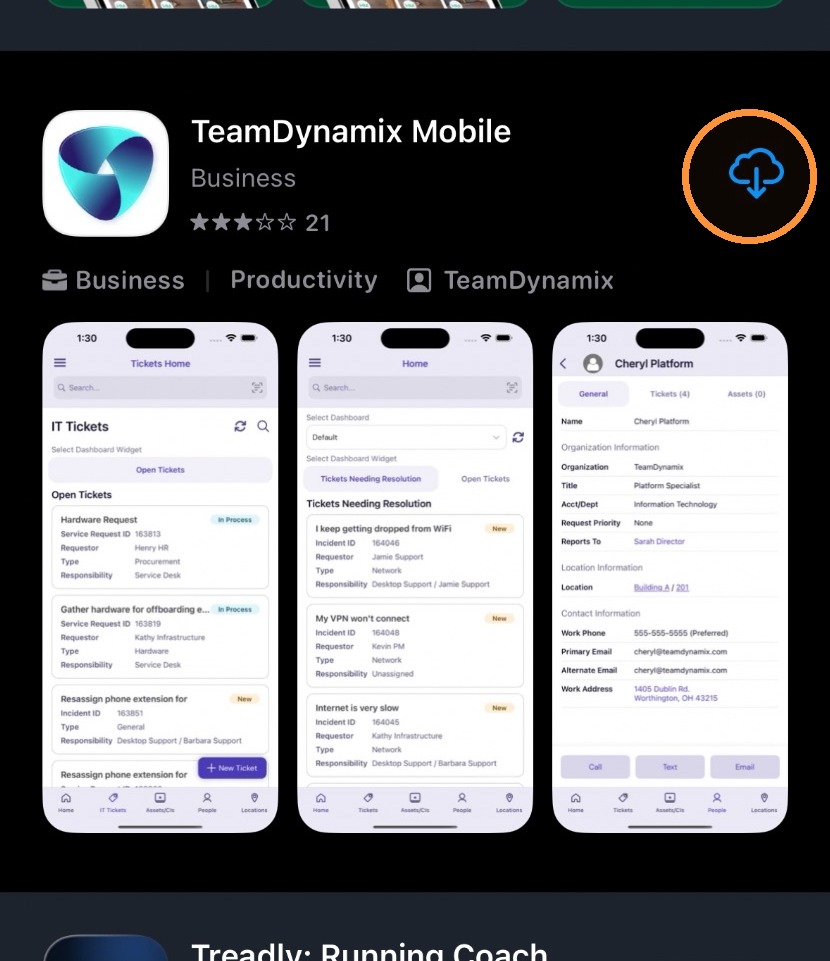
1. Go to the App Store for your phone and search for TeamDynamix. Download the TeamDynamix Mobile app. (Screen shots are in iOS, but the process is similar on Android phones.)
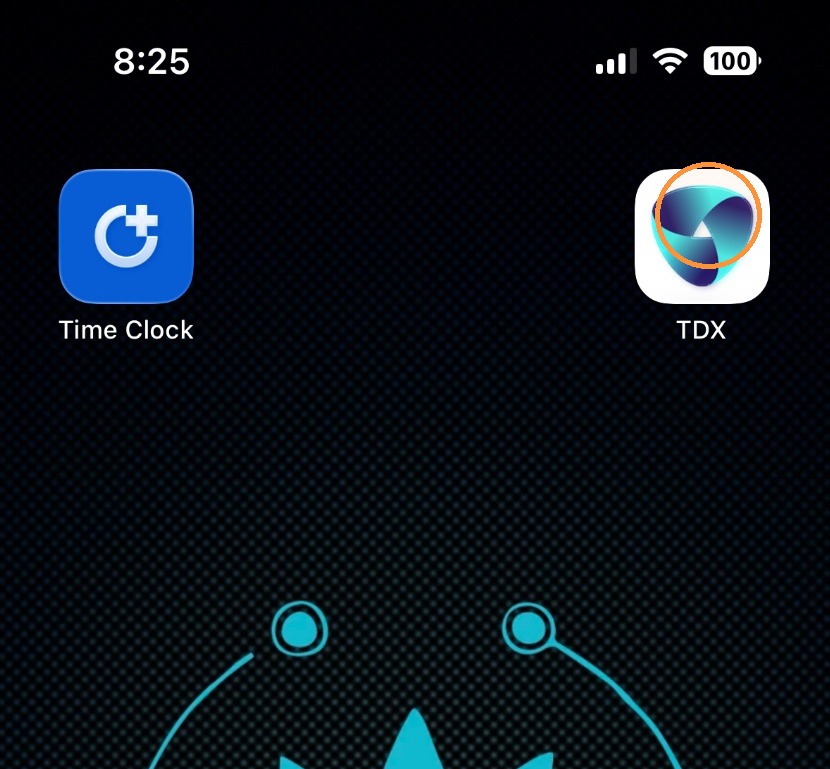
2. Open the TeamDynamix (TDX) app by tapping on the icon after downloading it.
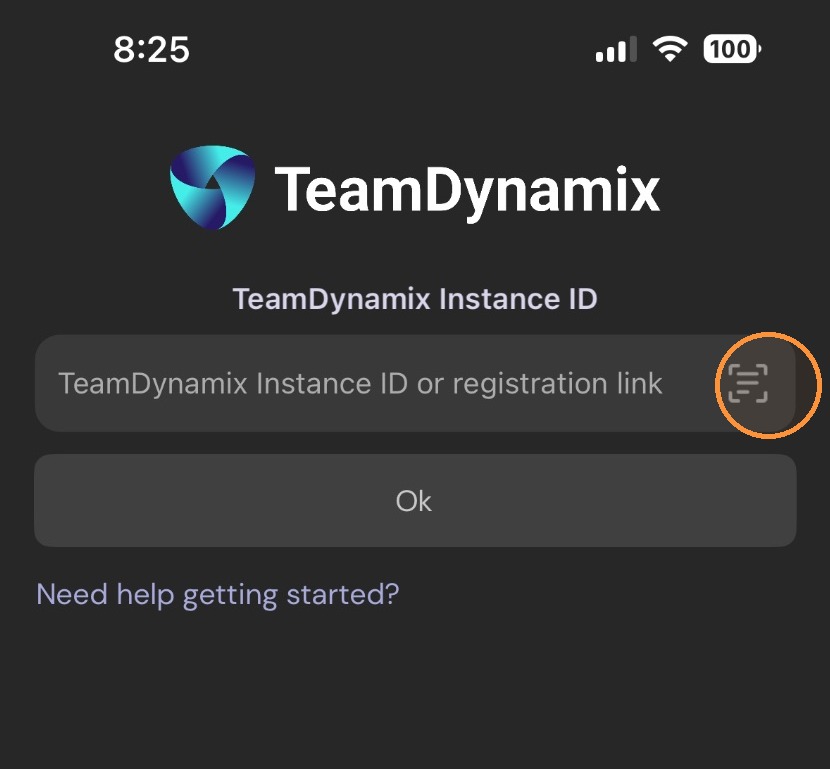
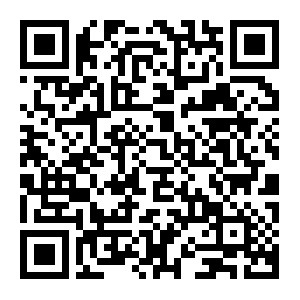
3. Either enter the TeamDynamix instance ID in the blank, or tap on the icon to the right to open your camera and scan the QR code to register your app with the KCKCC TeamDynamix instance.
4. This is the QR code that you need to scan to register your app. Alternately, you can enter this instance ID in the space provided:
eba57d3f-f35c-4e8f-a744-3ea9d04e829b
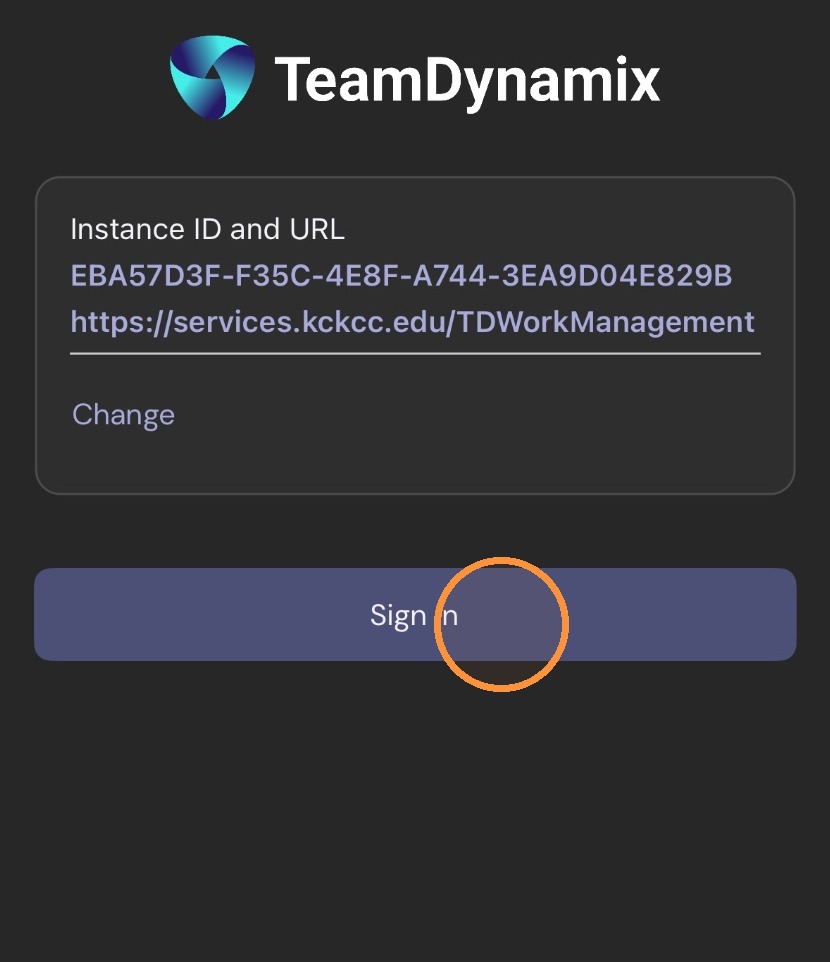
5. Once you have scanned the QR code or entered the instance ID, tap the blue "Sign In" button to sign in.
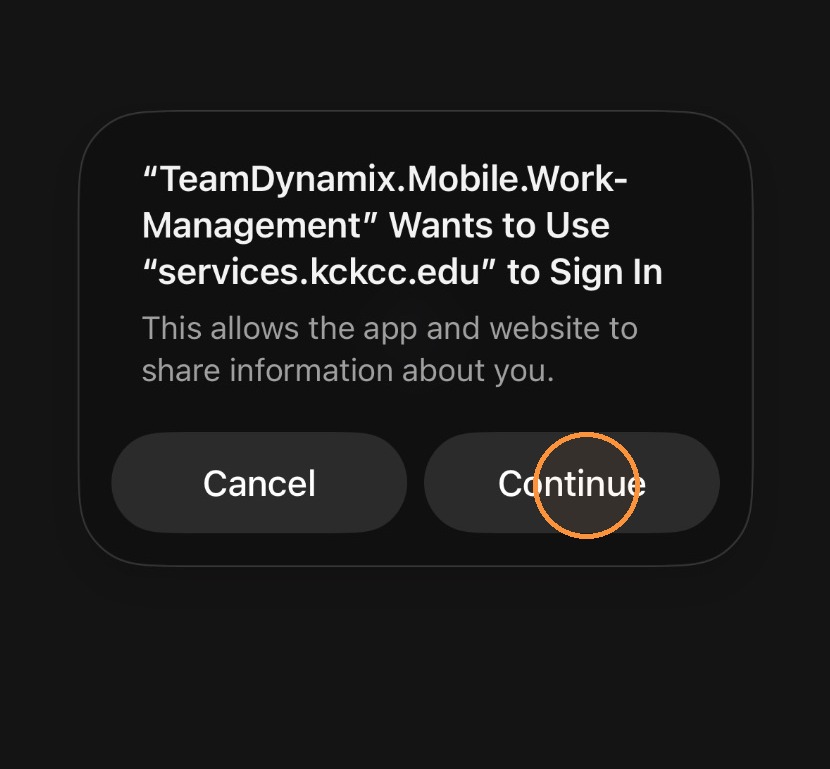
6. Your app may show you this prompt - if you see this message, tap "Continue".
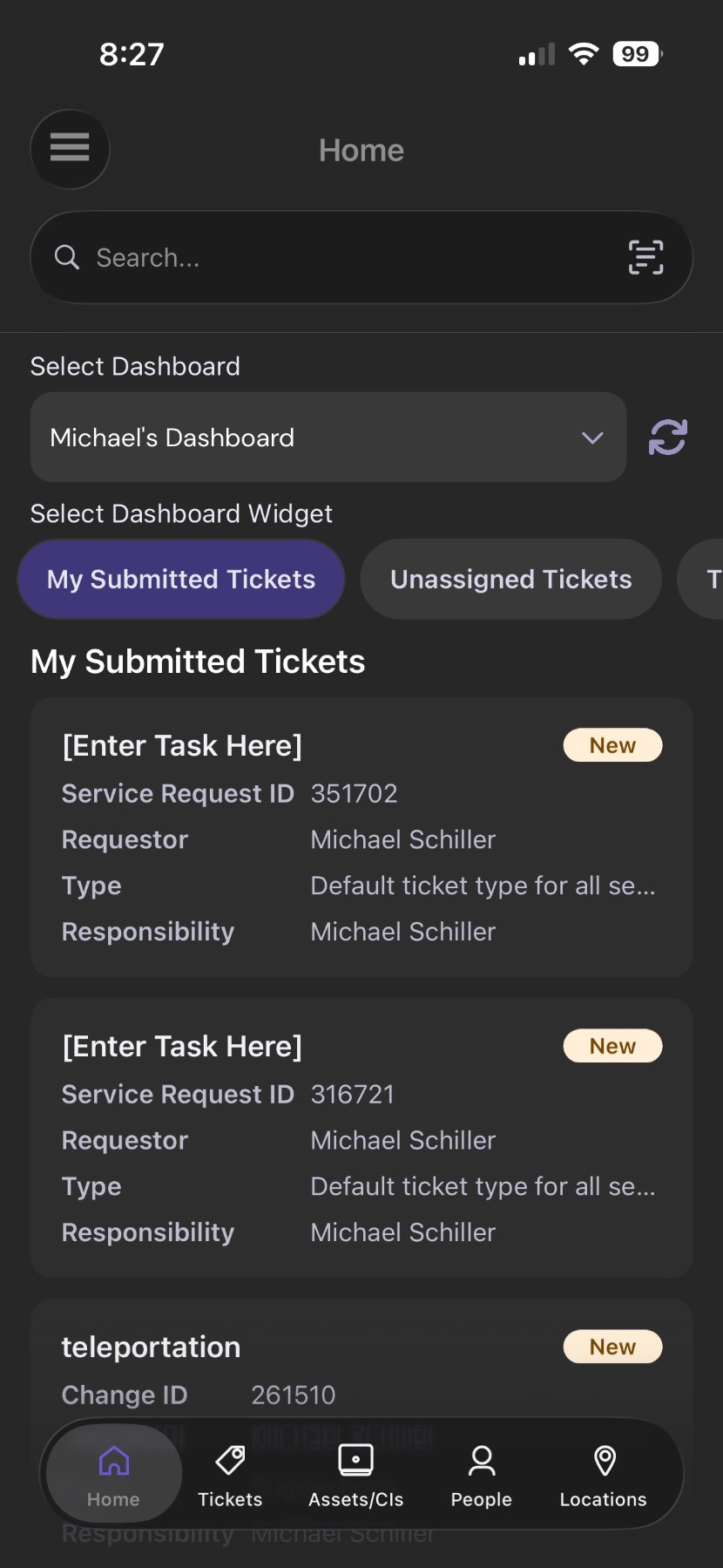
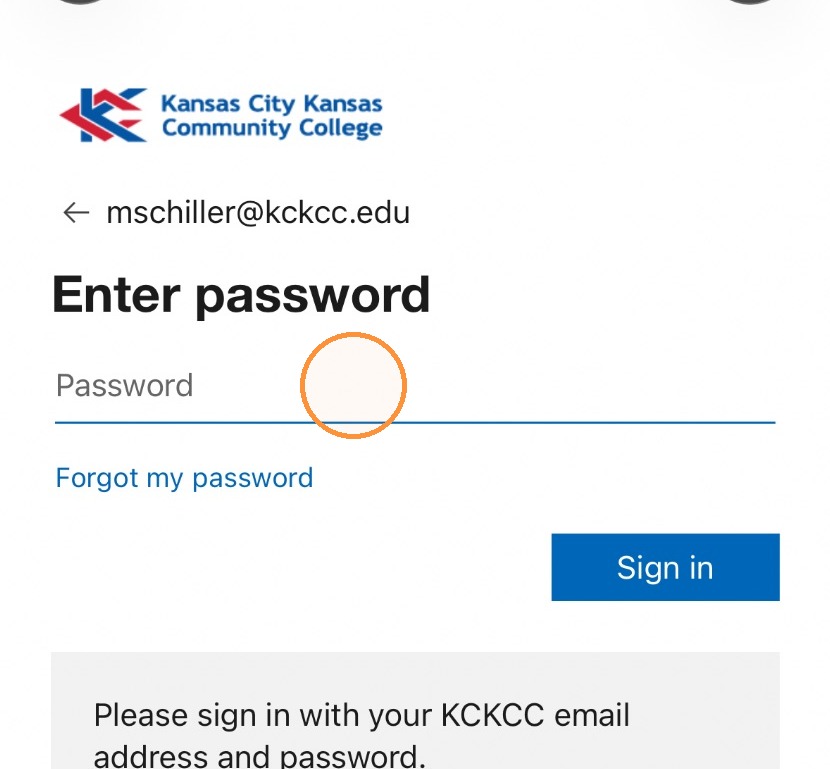
7. Sign in using your KCKCC credentials.
8. This will bring you to your dashboard. You have successfully downloaded the TeamDynamix app and signed in.