Body
1. What is it? – Just as the name implies, this allows for you to give your students a quick quiz or survey that you would like for them to accomplish over the course of the call.
a. Recommend – Creating the survey/quiz before the meeting.
b. Note – The “Quizzes” are still basically surveys. Also, there is no way to connect the quiz grade to the gradebook in Ultra.
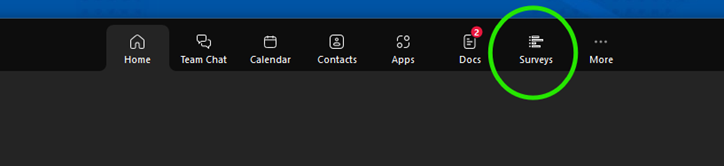
2. How to use it. – Click on the “Surveys” button in the top menu bar in the Zoom app.
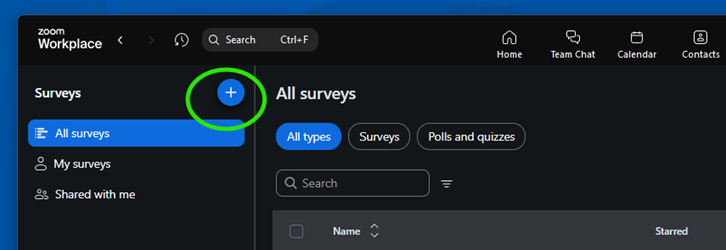
3. The Surveys dashboard page will load. Click on the “+” button in the upper left corner of the app to create a survey.
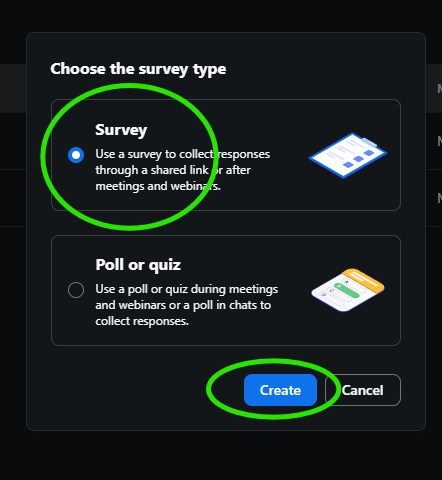
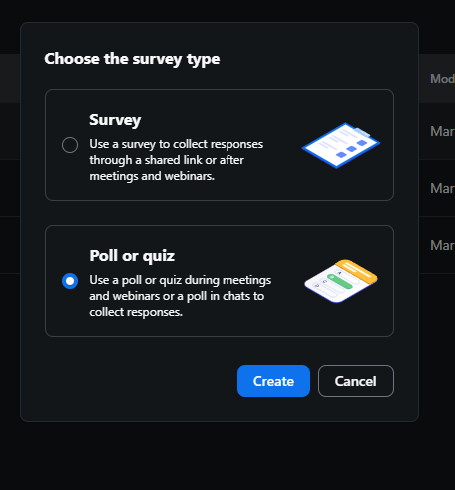
4. A pop-up will appear, asking you if you want to create a “survey” or “Poll or quiz”. We will create a survey first. Click on the “Survey” option and then click on the “Create” button.
5. Fill out the information to create the first survey question. Add a title, description, and question information.
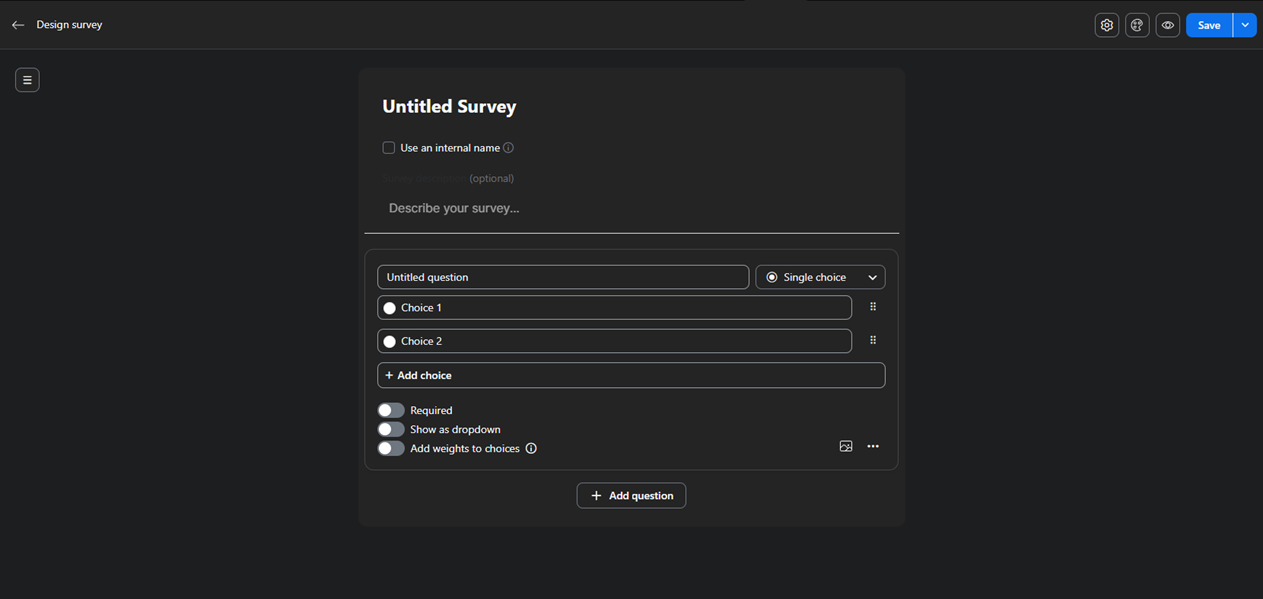
6. To add another question, click on the “+ Add question” button.
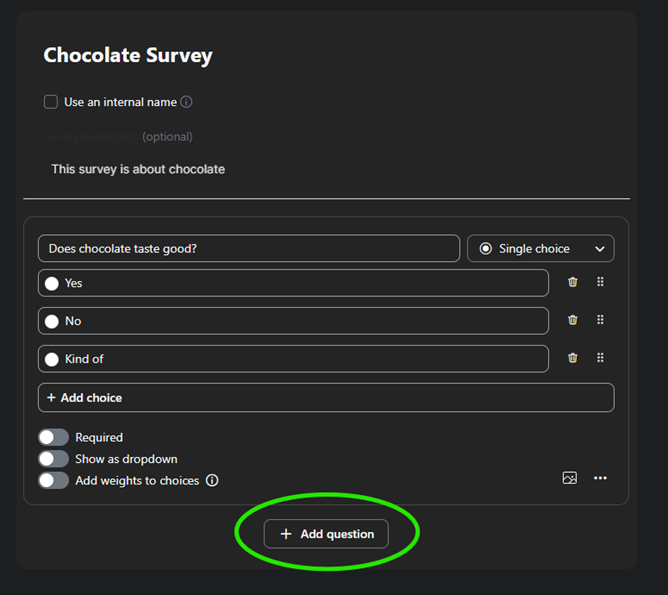
7. Keep adding questions until you have completed your survey. Once you are ready, click on the “Save” button to save your survey.
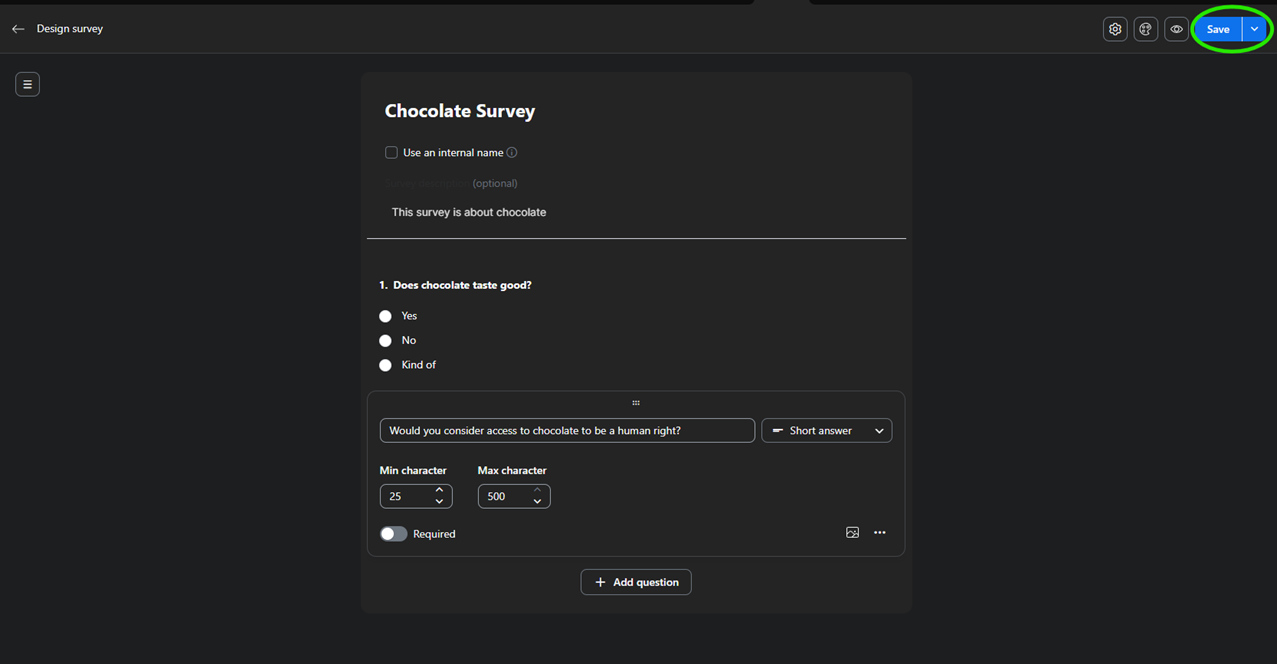
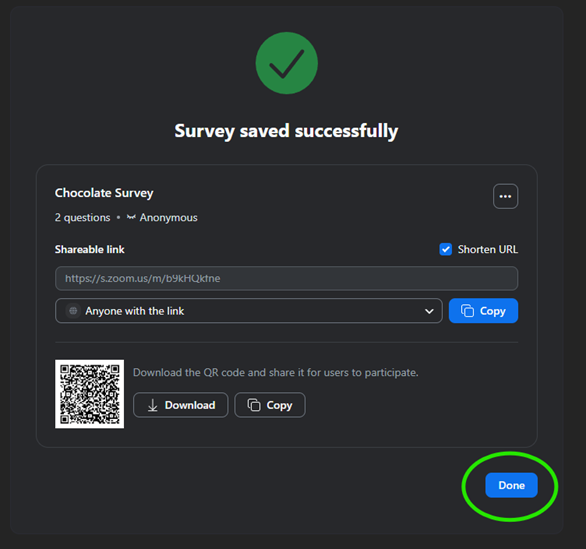
8. A link will appear that can be sent to others to have them complete your survey. Click on the “Done” button when you are ready to move forward.
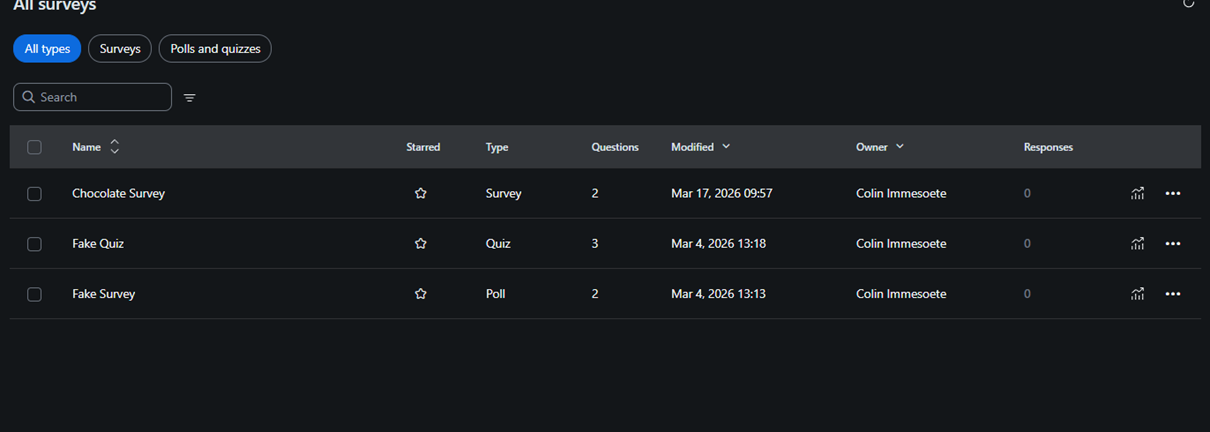
9. The survey will appear on the dashboard with your other surveys.
10. Creating a poll or quiz is the exact same process as creating a survey.
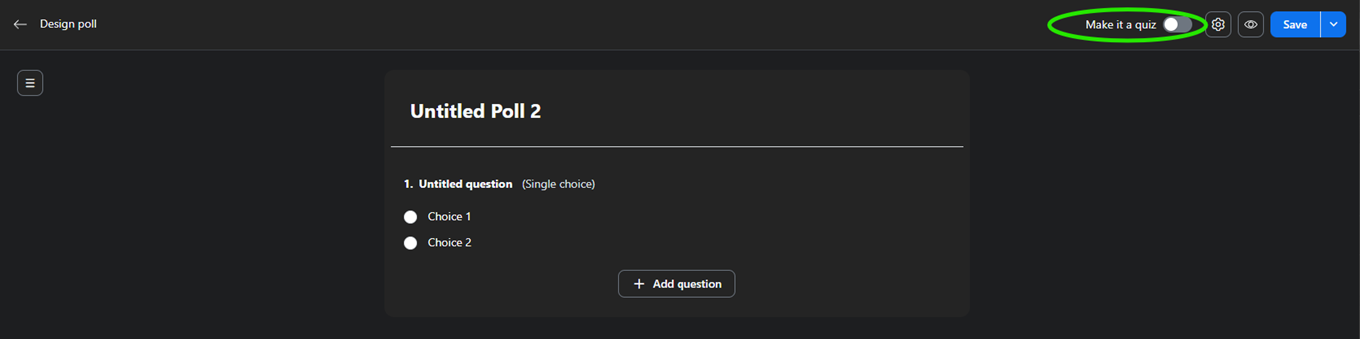
11. To turn a poll into a quiz, click on the “Make it a quiz” switch. Now the poll will be treated as a quiz.
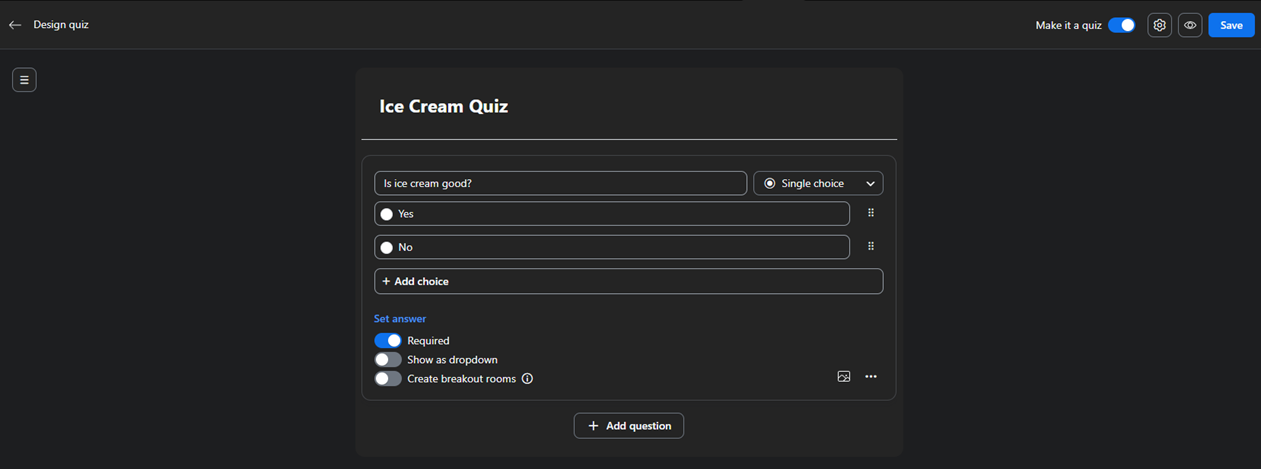
12. Here is an example of a quiz question.
13. Why is this important/how can this be used? – The surveys add a layer of interaction in an online class. Surveys can also be used by the instructor to understand a sense of what the students are learning, feeling, and understanding, based on the questions asked.