How to Change the Course Banner in Ultra
Body
How to Change the Course Banner in Ultra
- Go to the courses section in your Blackboard account.
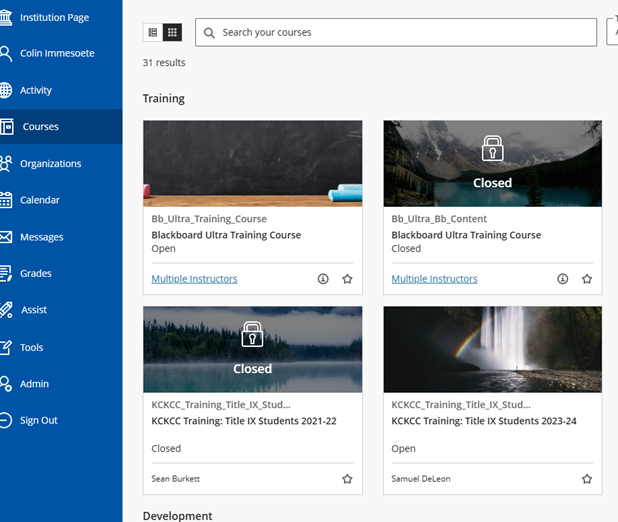
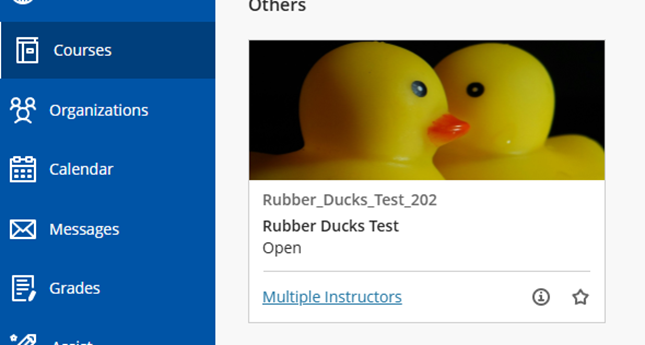
- Click on the course that you would like to change the banner of.
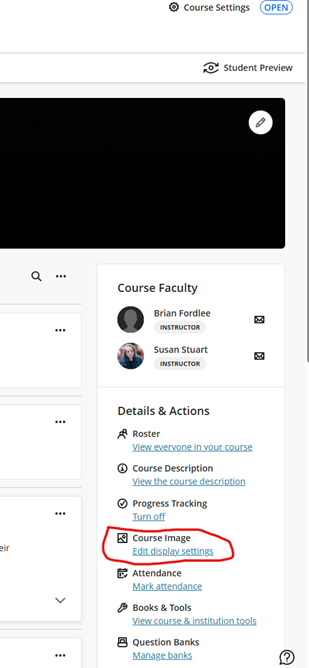
- Once you have entered the course, click on the text that says, “Edit display settings”, under the Course Image section that exist on the right side of the webpage.
- Once you have clicked on “Edit display settings”, a new panel will appear on the right side of the webpage.
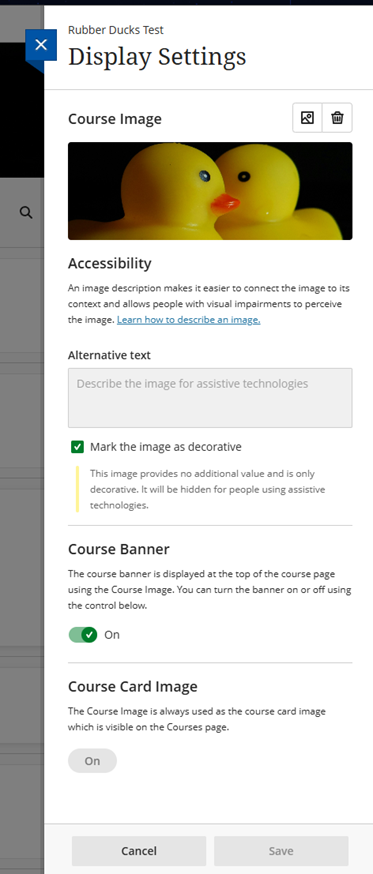
- Make sure that the “Course Banner” has been turned on.
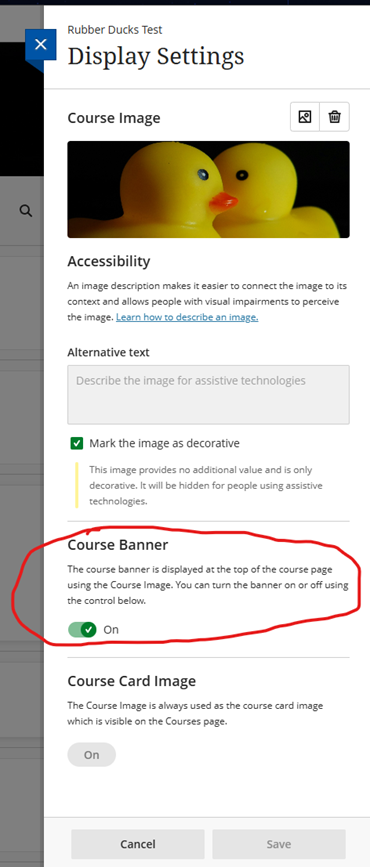
- To add or change the course banner image, click on the image icon in the upper right corner.

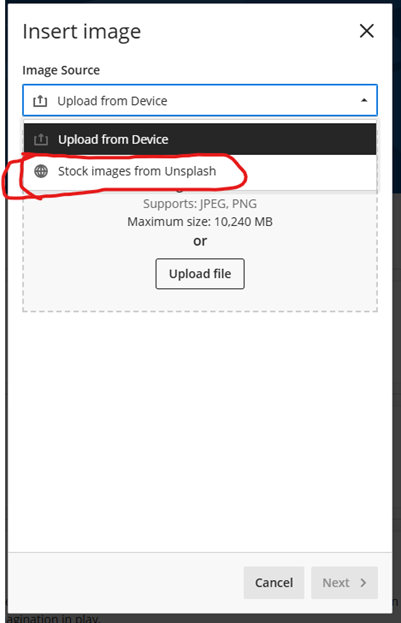
- Now a popup window will appear. Click on the dropdown to decide if you want to upload a photo or use an image from Unsplash.
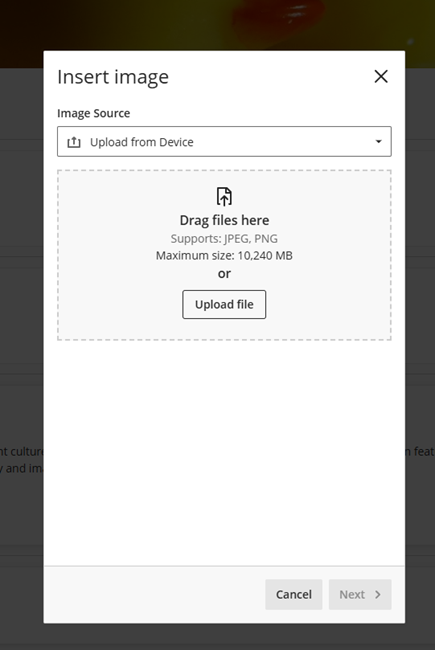
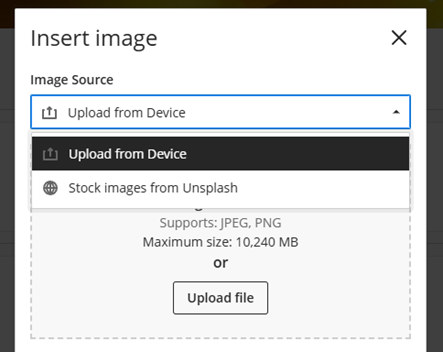
- If you are uploading your own photo, use the “Upload from Device” option, and click the “Upload file” button. / If you are going to use a stock image – skip to step 18.
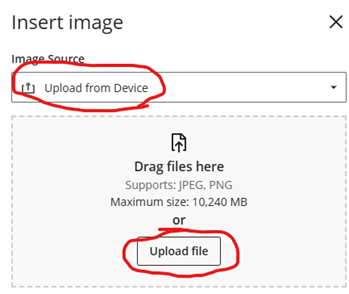
- Once you click the “Upload file” button, the browser will open a file explorer window. From here navigate to the picture that you would like to set as the course image.
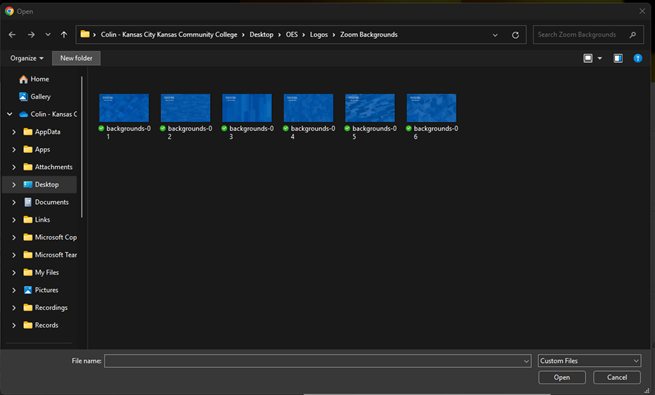
- Click on the image that you would like to use, and then click on the “Open” button.
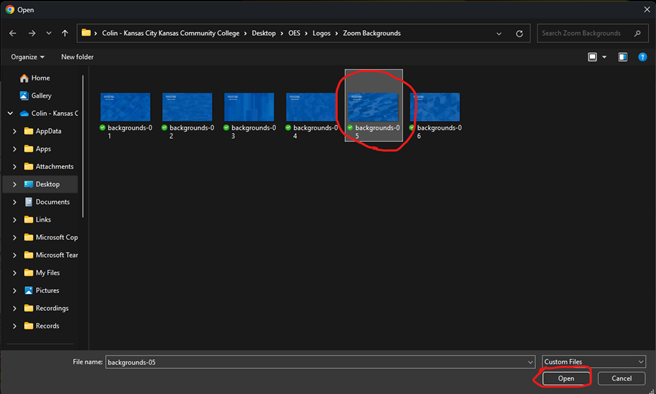
- Once the picture has been added, the pop-up window will appear with the picture in it.
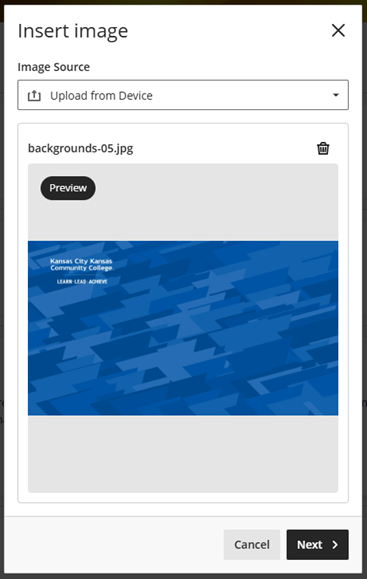
- Now you will need to click on the “Next” button at the bottom of the window.
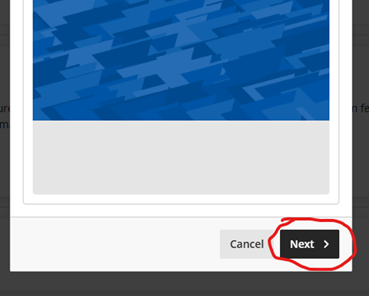
- You will now need to choose what part of the image you want to have viewed in the course banner.
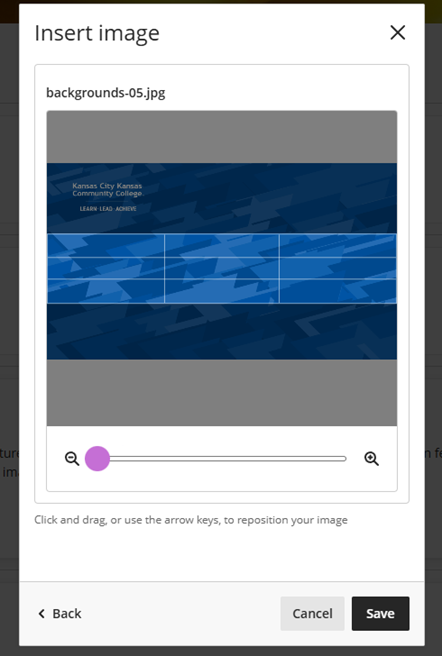
- After the changes have been made, click on the “Save” button.
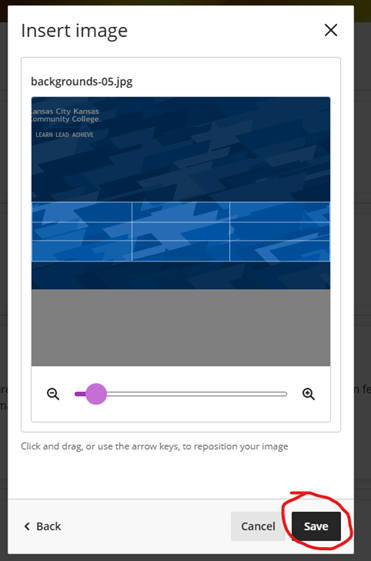
- After the changes have been saved, a preview will appear in the side panel and the pop up window will disappear.
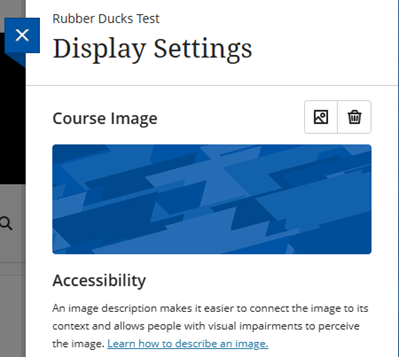
- Now it is time to click on the “Save” button at the bottom right of the side panel.
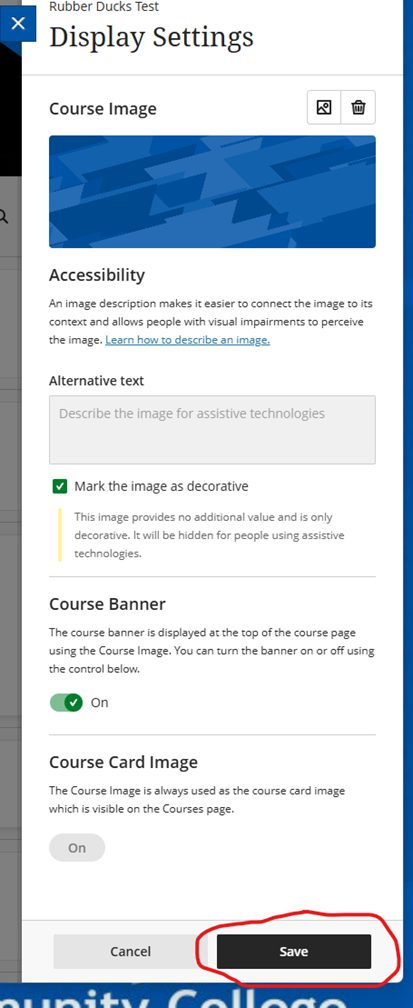
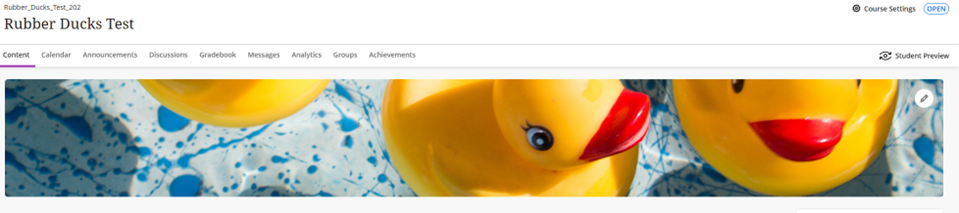
- Now that the “Save” button has been clicked, the course banner will now appear at the top of the page.
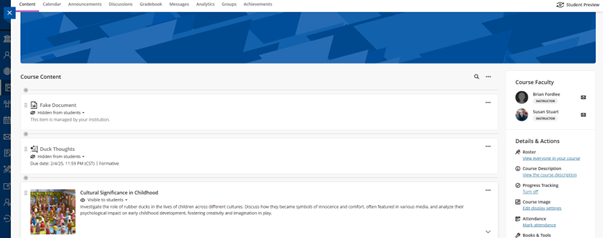
- If you are going to use a stock image as the course banner, click on the stock image option.
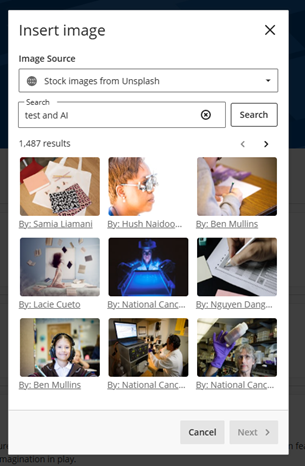
- Once the Unsplash option has been selected, several images will appear based on what the AI thinks you are searching for.
- You can replace what the AI searches for with your own search terms. To do this, enter what you would like to search for in the search bar. Click on the search button when you are ready to search for pictures.
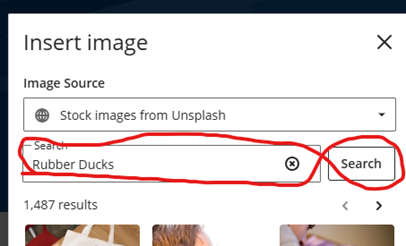
- New images will appear that match your search terms.
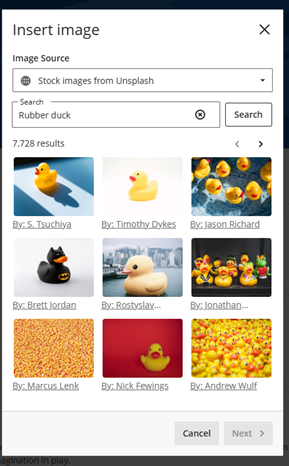
- Click on the image that you would like to use as the banner image and click on the next button.

- Once the picture has been added, the pop-up window will appear with the picture in it.
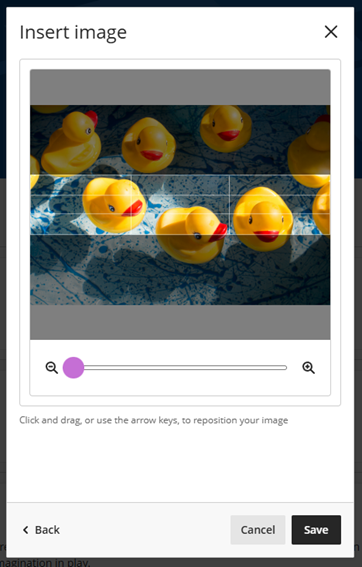
- You can now make adjustments to the image for the banner.
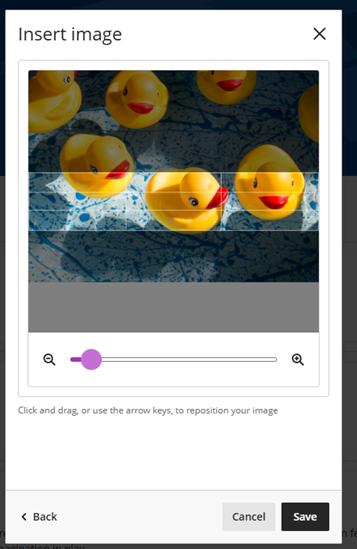
- Once the adjustments have been made, click on the “Save” button on the bottom right of the pop-up window.

- After the changes have been saved, a preview will appear in the side panel and the pop up window will disappear.
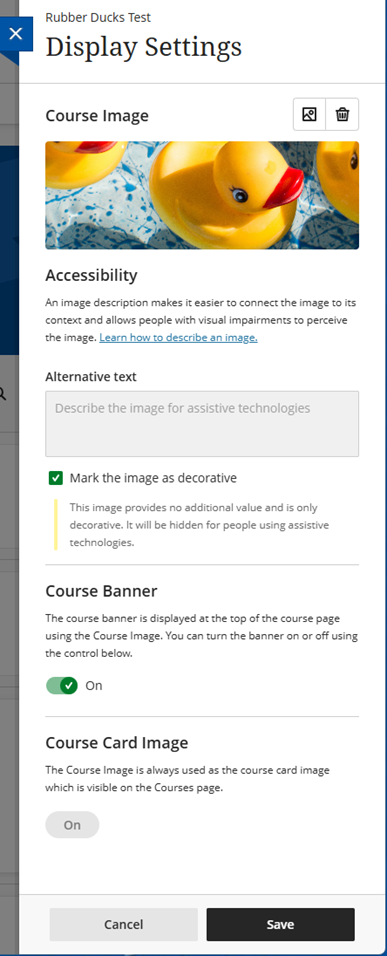
- Now it is time to click on the “Save” button at the bottom right of the side panel.

- Now that the “Save” button has been clicked, the course banner will now appear at the top of the page.
Details
Details
Article ID:
5354
Created
Tue 7/7/26 4:10 PM
Modified
Tue 7/7/26 4:10 PM