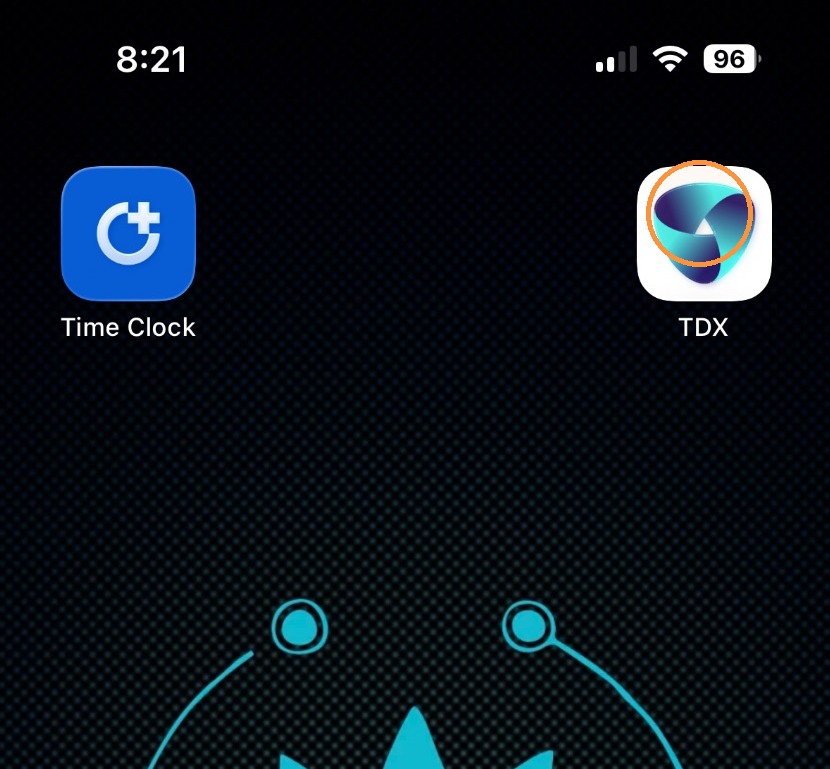
1. Tap the TDX icon to open the TeamDynamix Work Management app.
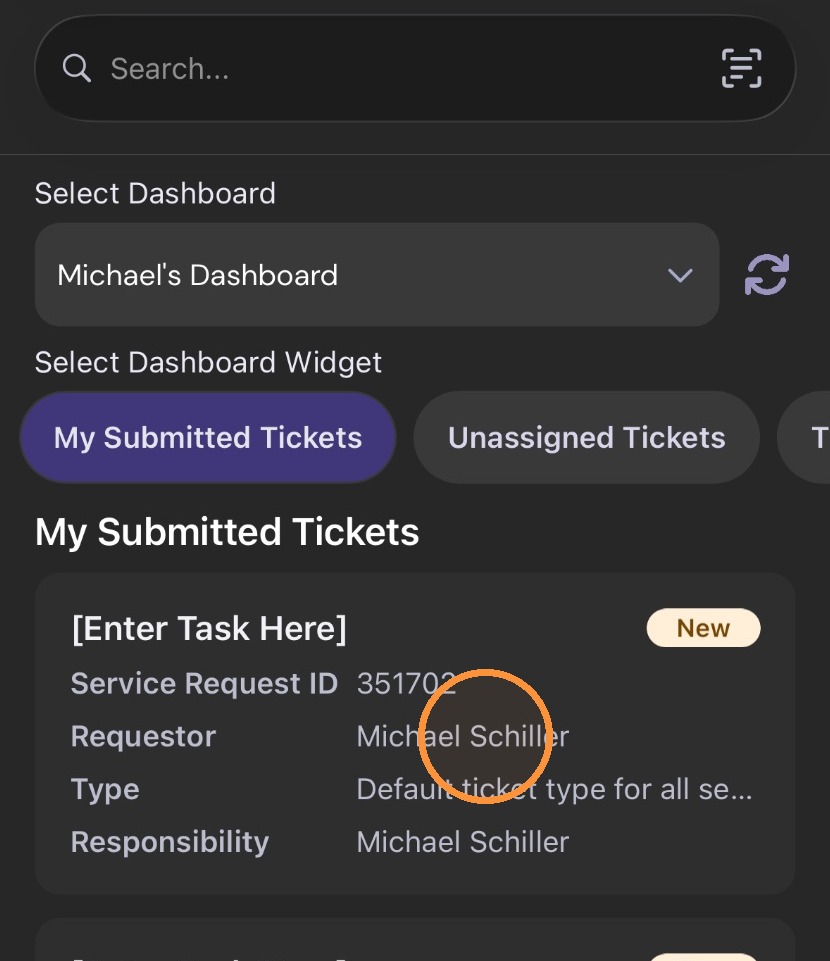
2. Find the ticket that you want to handle by either using the search bar or selecting the dashboard from which you can access your tickets. Tap on a ticket to open up the ticket details.
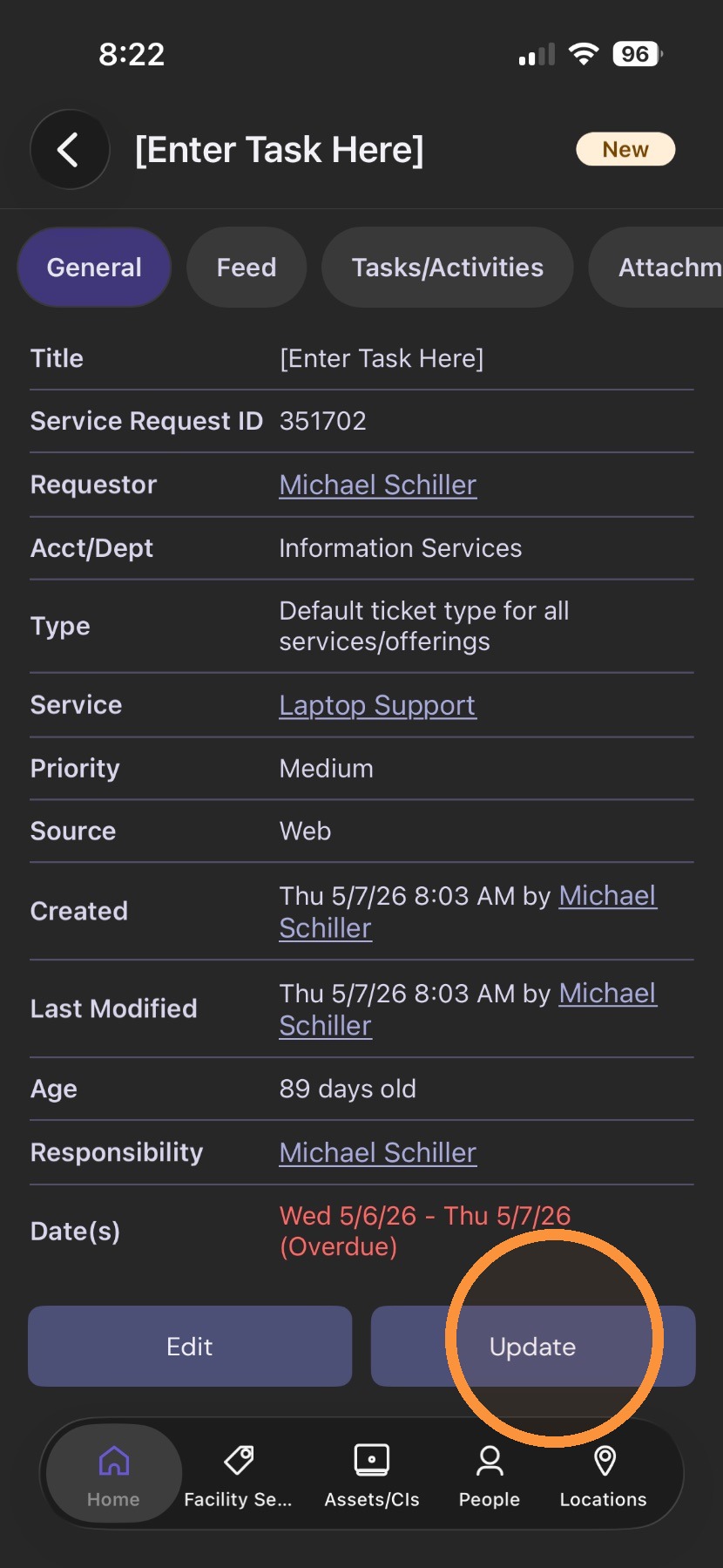
3. If you want to edit any of the ticket details, tap the "Edit" button at the bottom of the screen. If you'd like to change the ticket's status, the person the ticket is assigned to, or log progress on the ticket, tap "Update". (For this example, we are using Update.)
4. Tapping "Update" opens a new screen. To update the status of the ticket, tap the arrow to the right of the "New Status" menu.
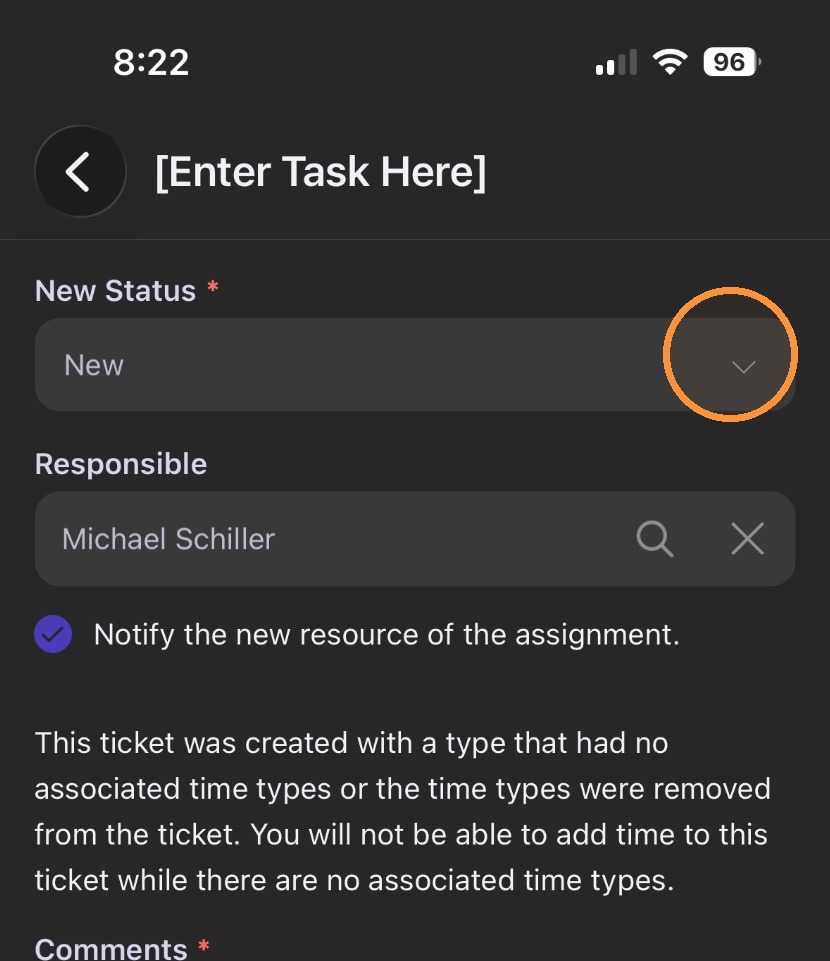
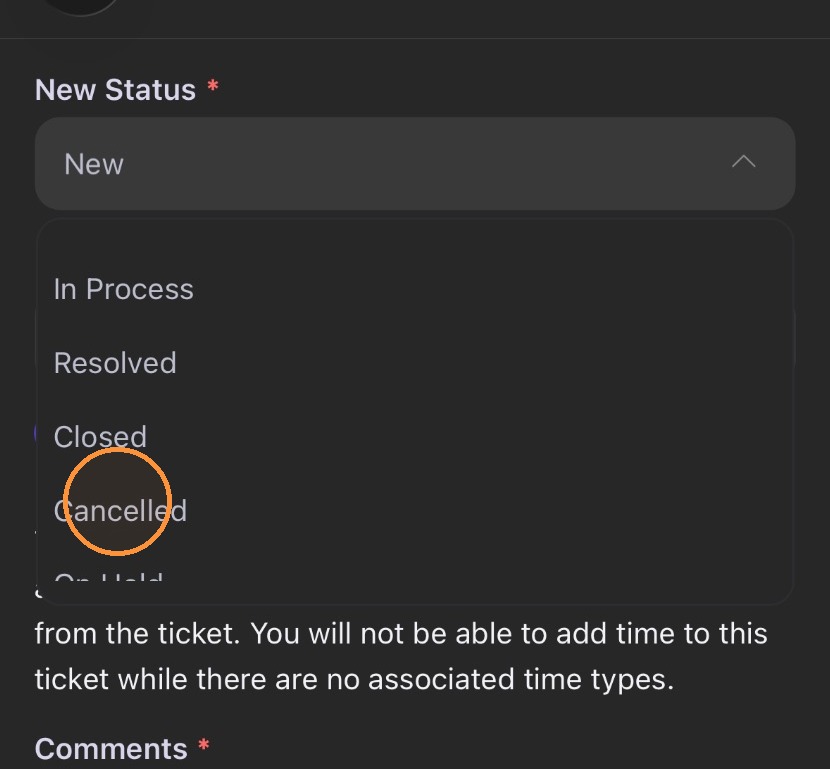
5. When the menu opens, tap the status you'd like to change the ticket to.
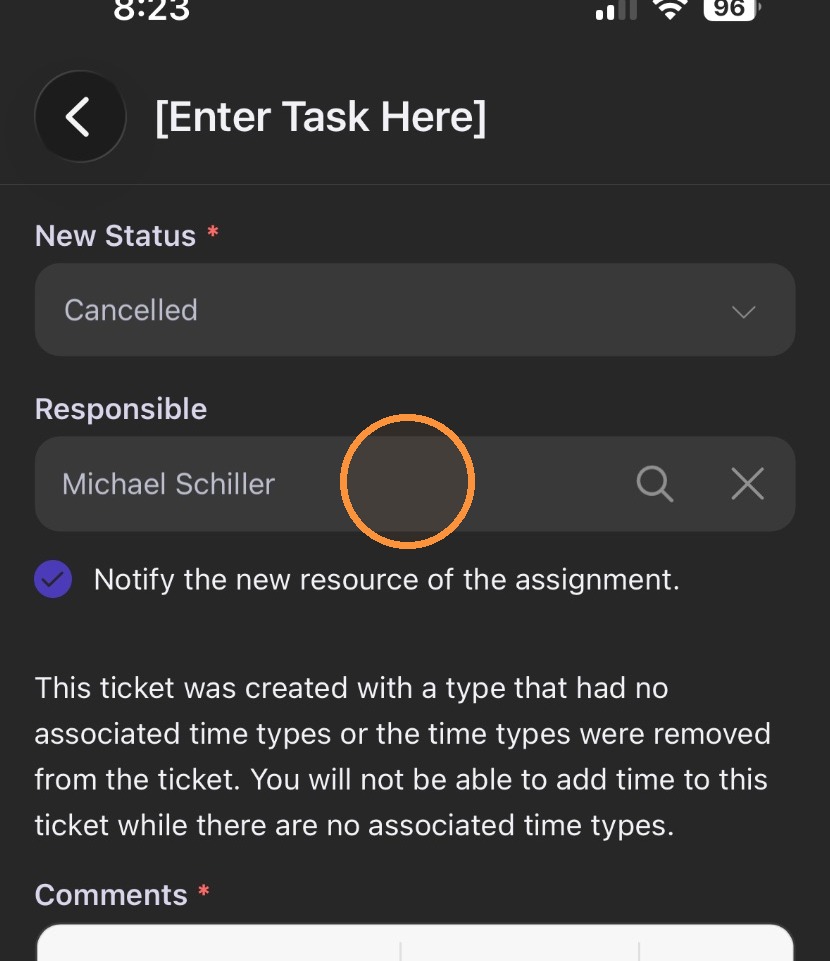
6. If you want to update the person responsible for the ticket, tap anywhere in the box under the word "Responsible".
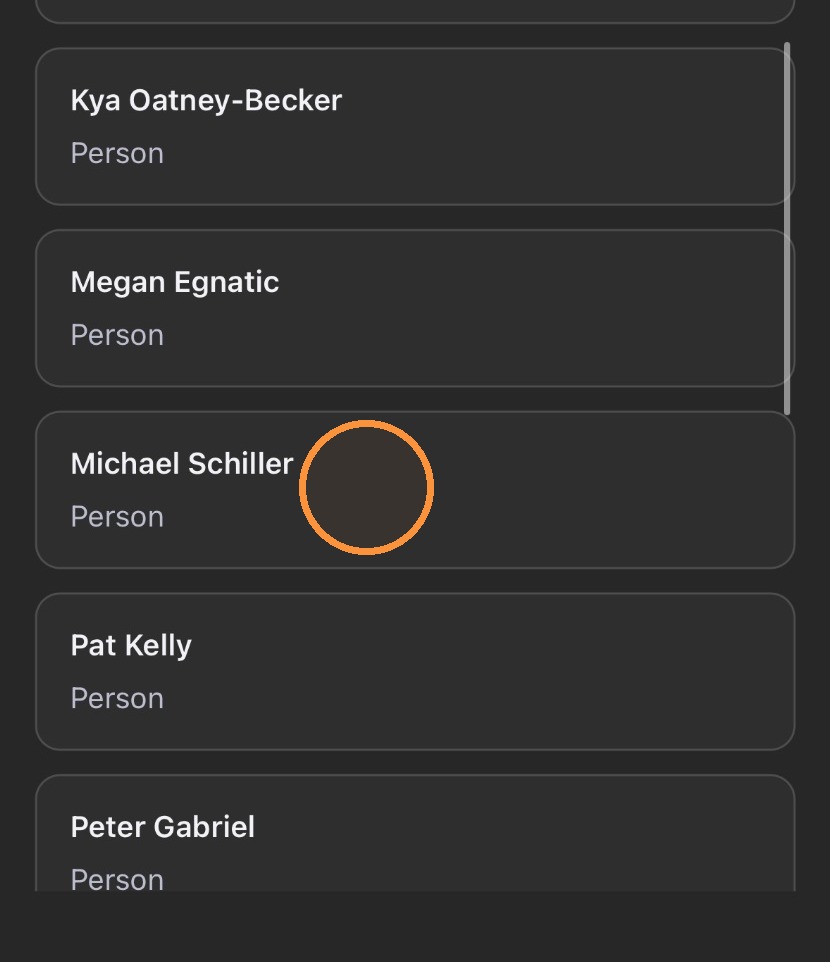
7. In the menu that opens, find the person you want to assign the ticket to, and tap the button with their name.
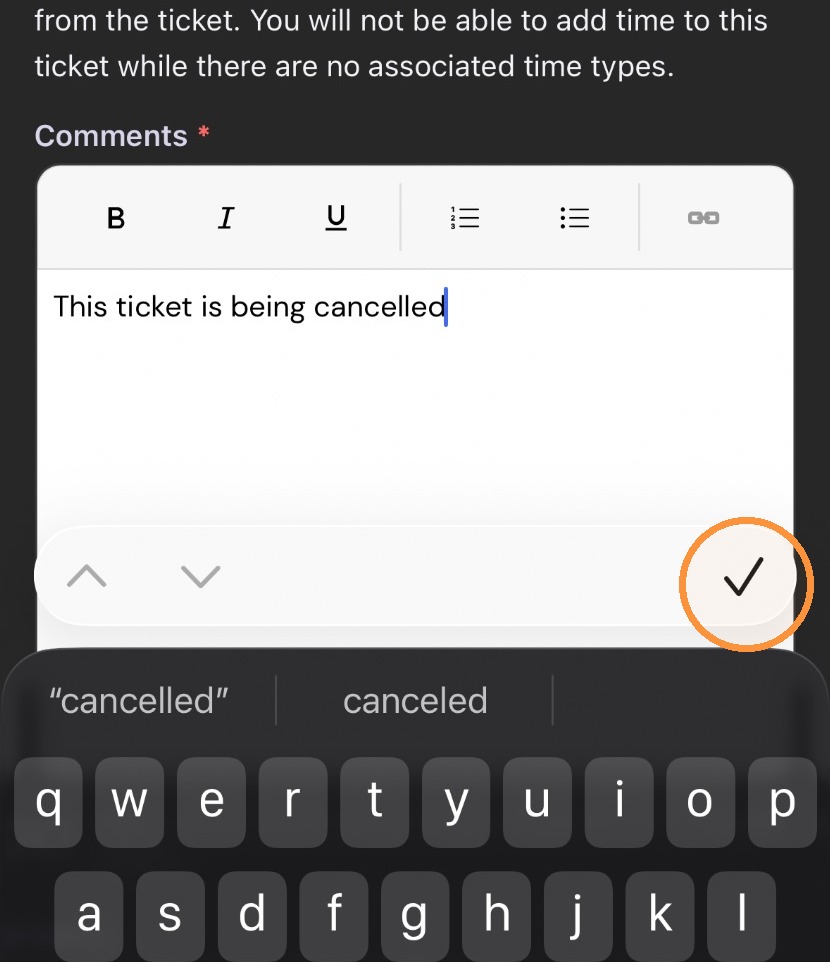
8. To add comments, type some comments in the box under the word "Comments". When you are finished adding comments, tap the checkmark in the corner.
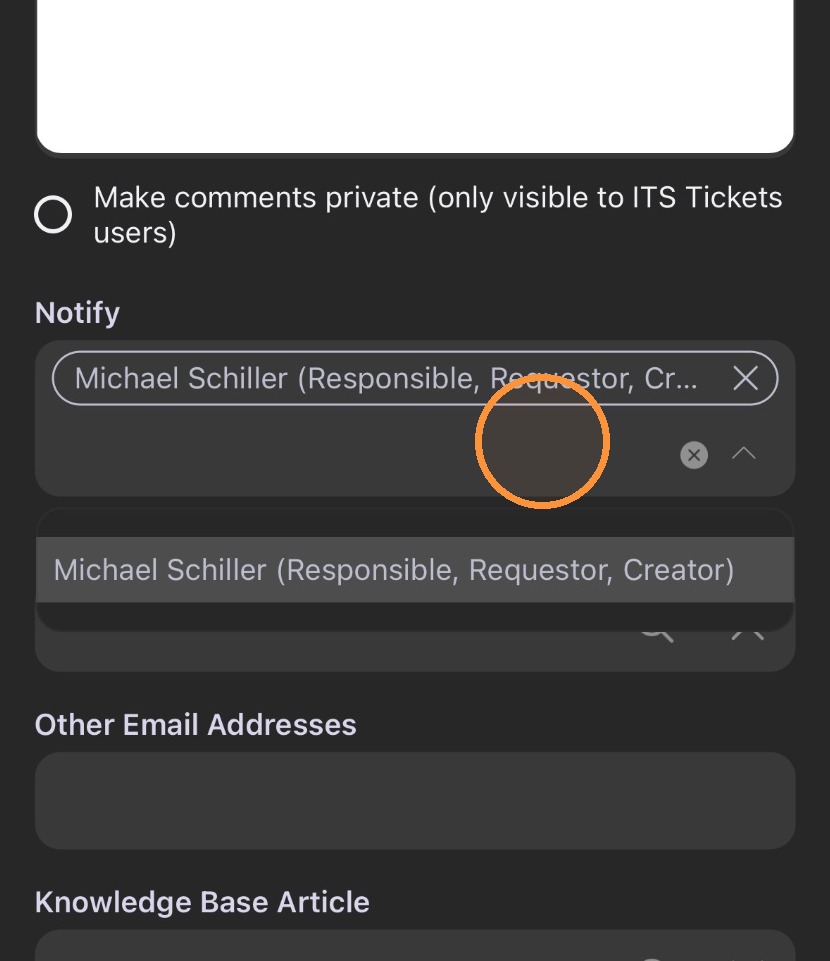
9. If you wish to notify people of the ticket update beyond the person who filed the ticket and the person who is responsible for the ticket, select their name in the "Notify" box or type their email in the "Other Email Addresses" box.
10. When you are finished, tap the "Save" button at the bottom of the ticket update screen.
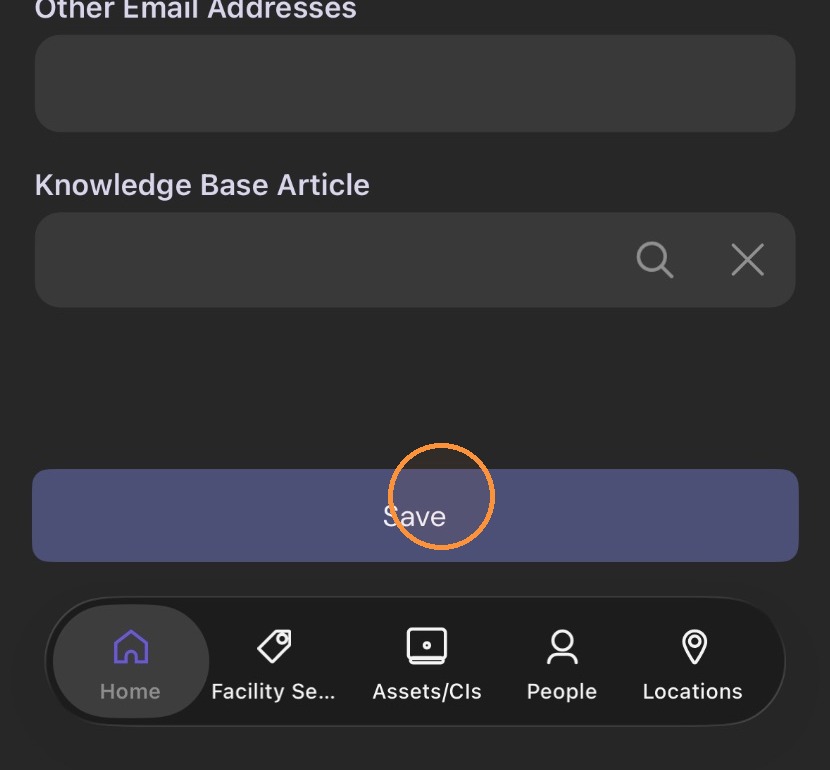
11. Once you click "Save", the ticket is updated with the new status, assignment and comments. Anyone in the notification list will also receive an email alerting them to the update.