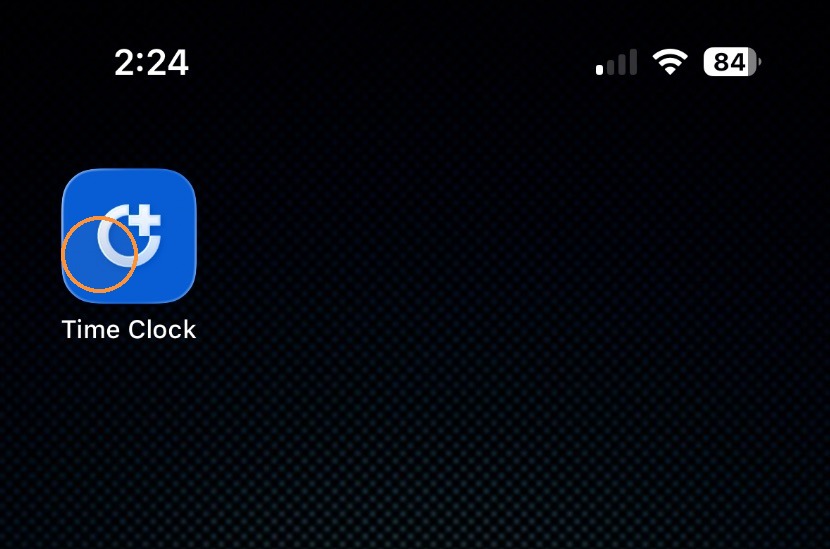
1. Open the Time Clock app on your phone.
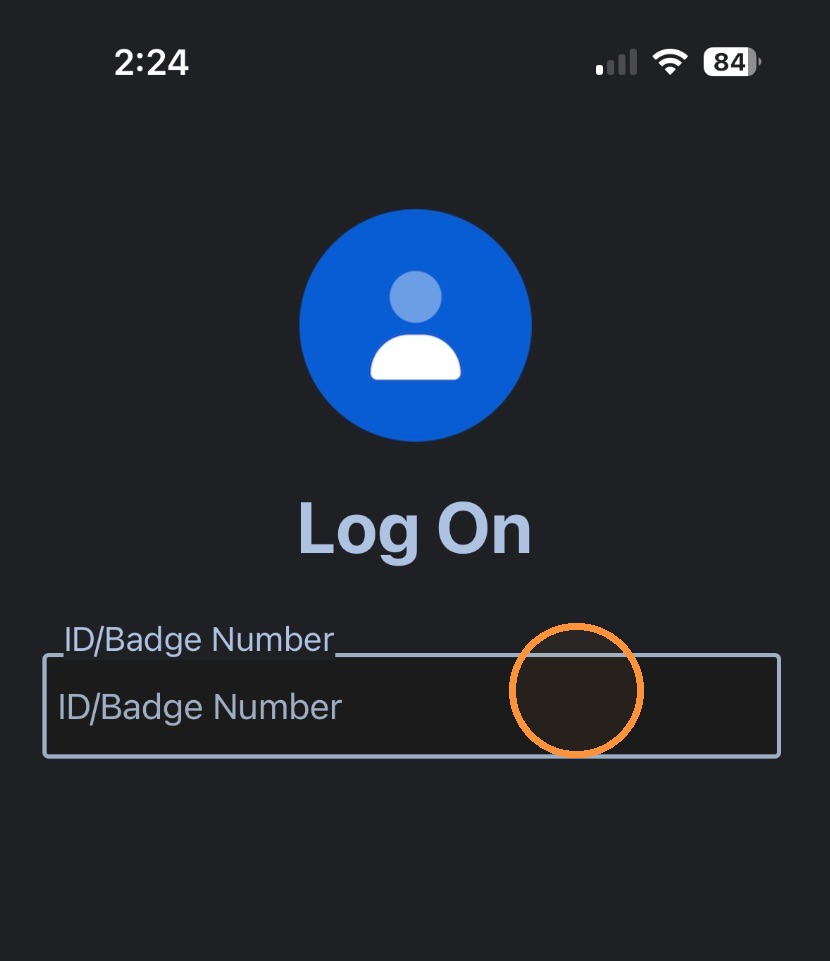
2. Enter your ID or Badge Number in the space provided.
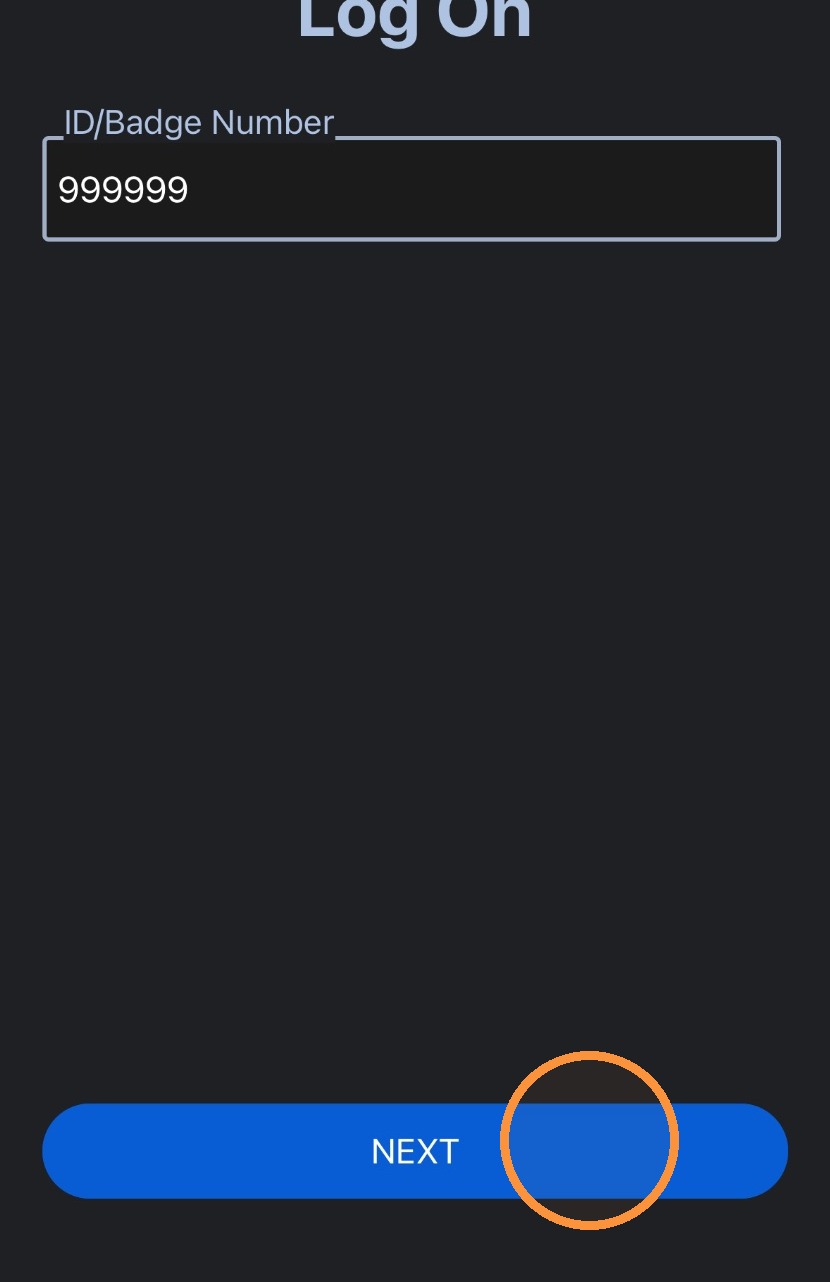
3. Click "NEXT" to log in.
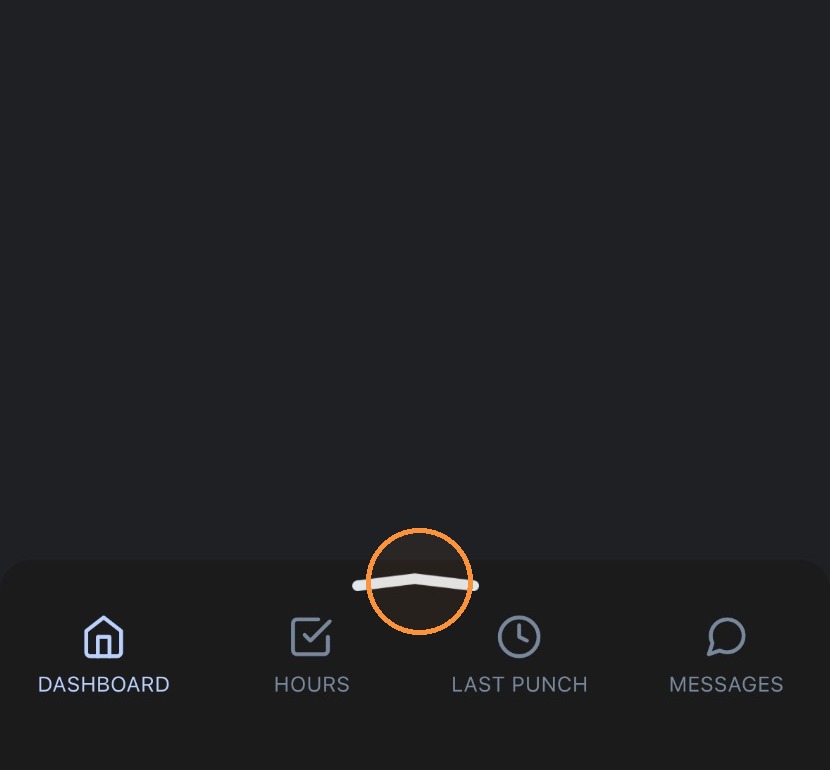
4. You should now be looking at your dashboard. Drag the arrow up from the bottom of the screen to open the Dashboard Menu.
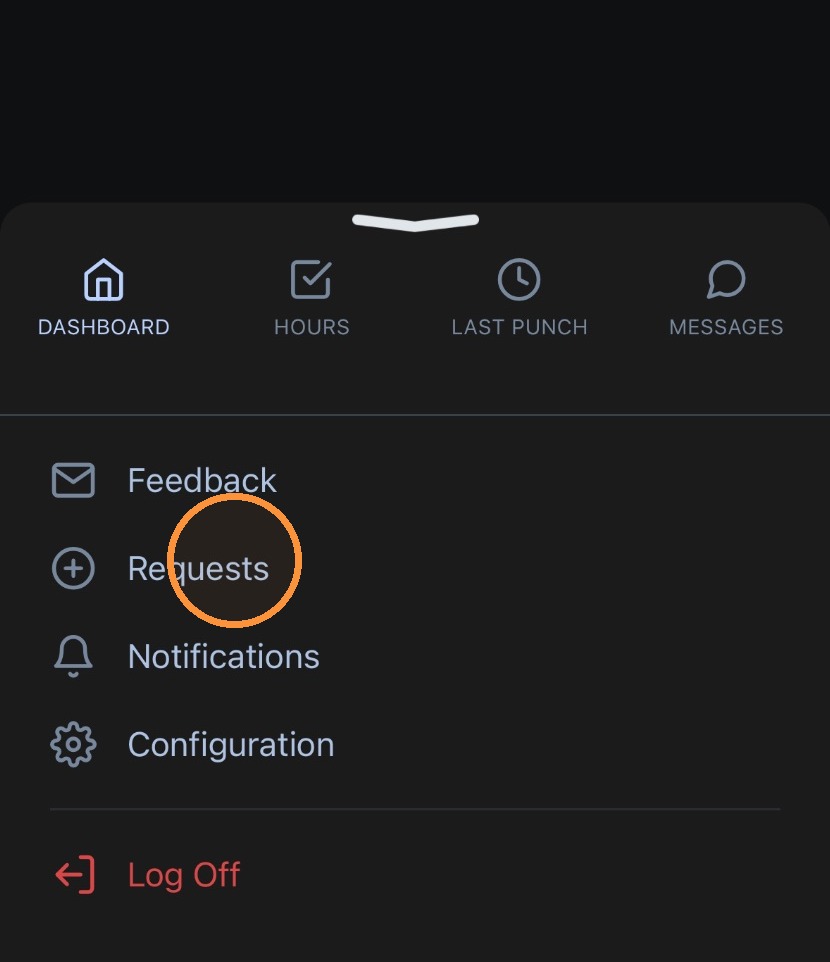
5. Select "+ Requests" from the Dashboard Menu.
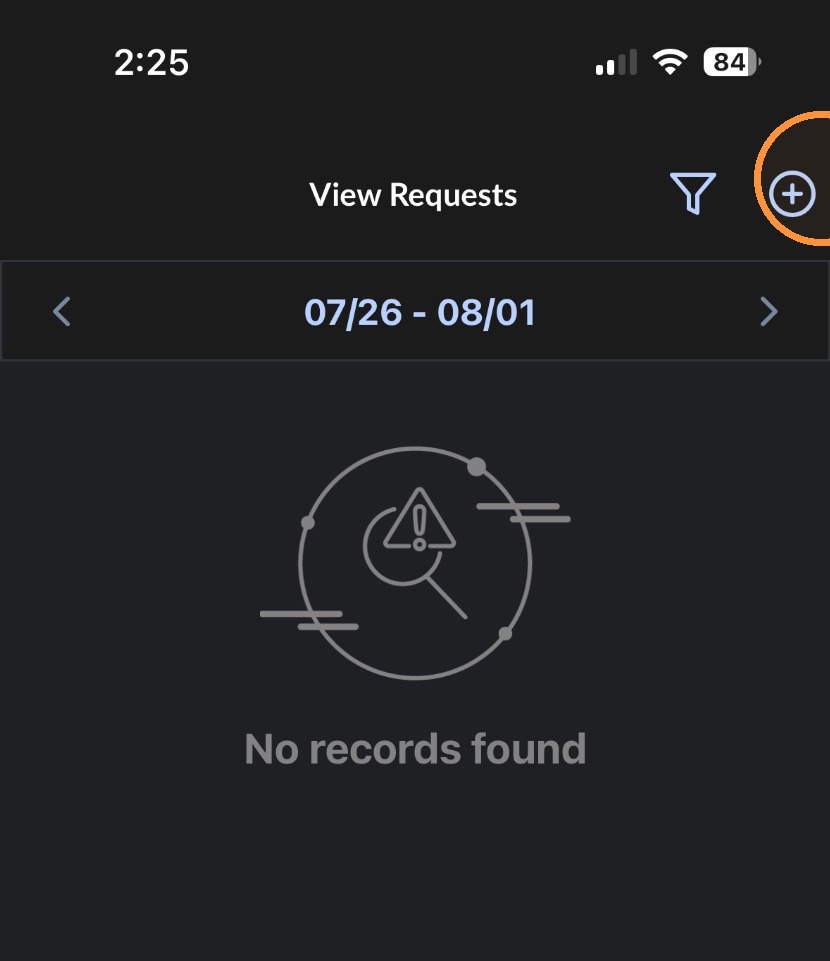
6. Now you are in the Leave Requests menu. Tap the plus ("+") in the upper right of the screen to add a leave request.
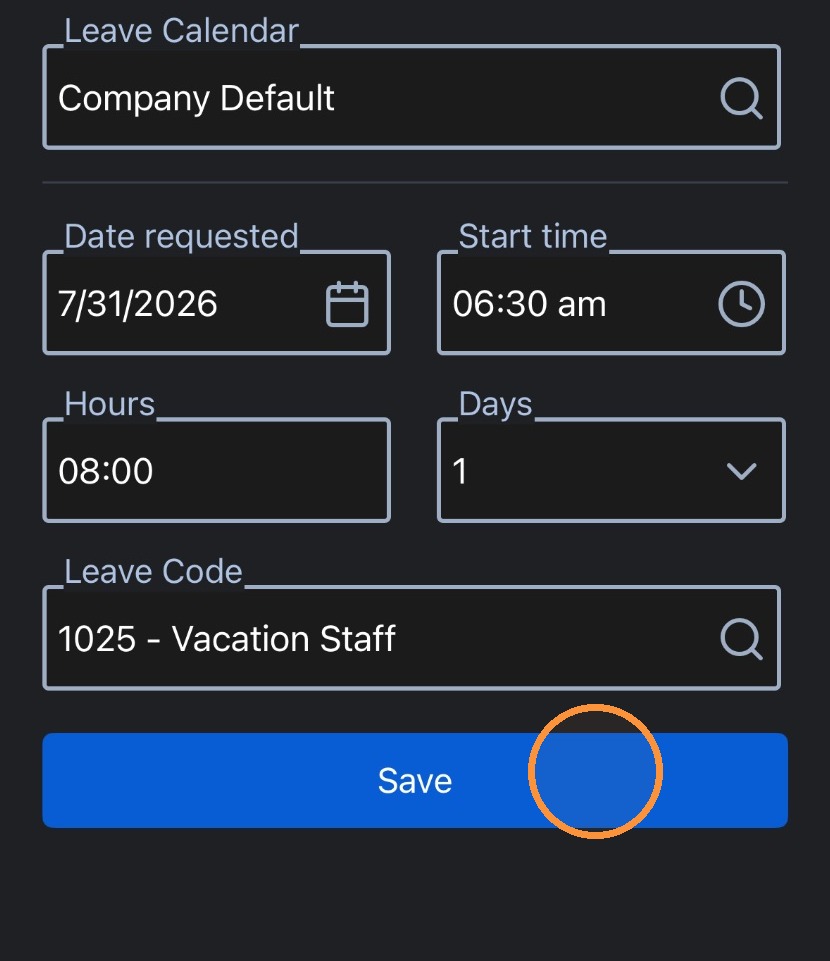
7. This will open the leave request form. Select the date of the first day of requested leave in the "Date requested" field.
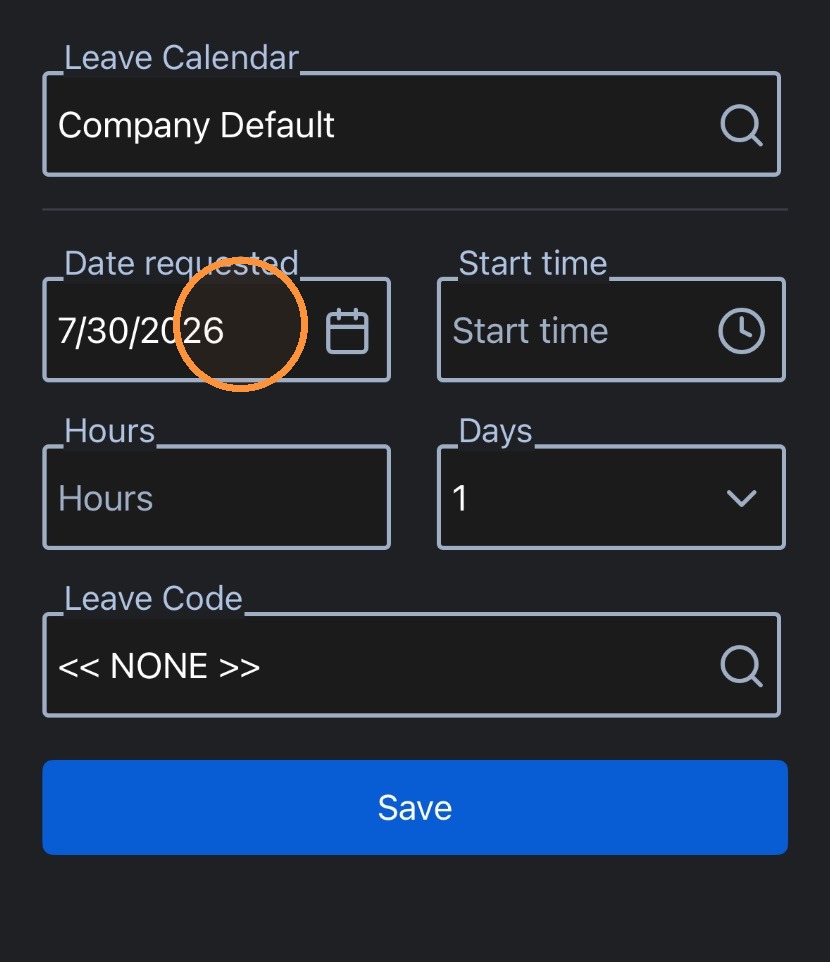
8. Select the start time for the requested leave by tapping on the "Start time" field and using the menu that pops up. If you are requesting a full day, this will be the start time for your typical shift.
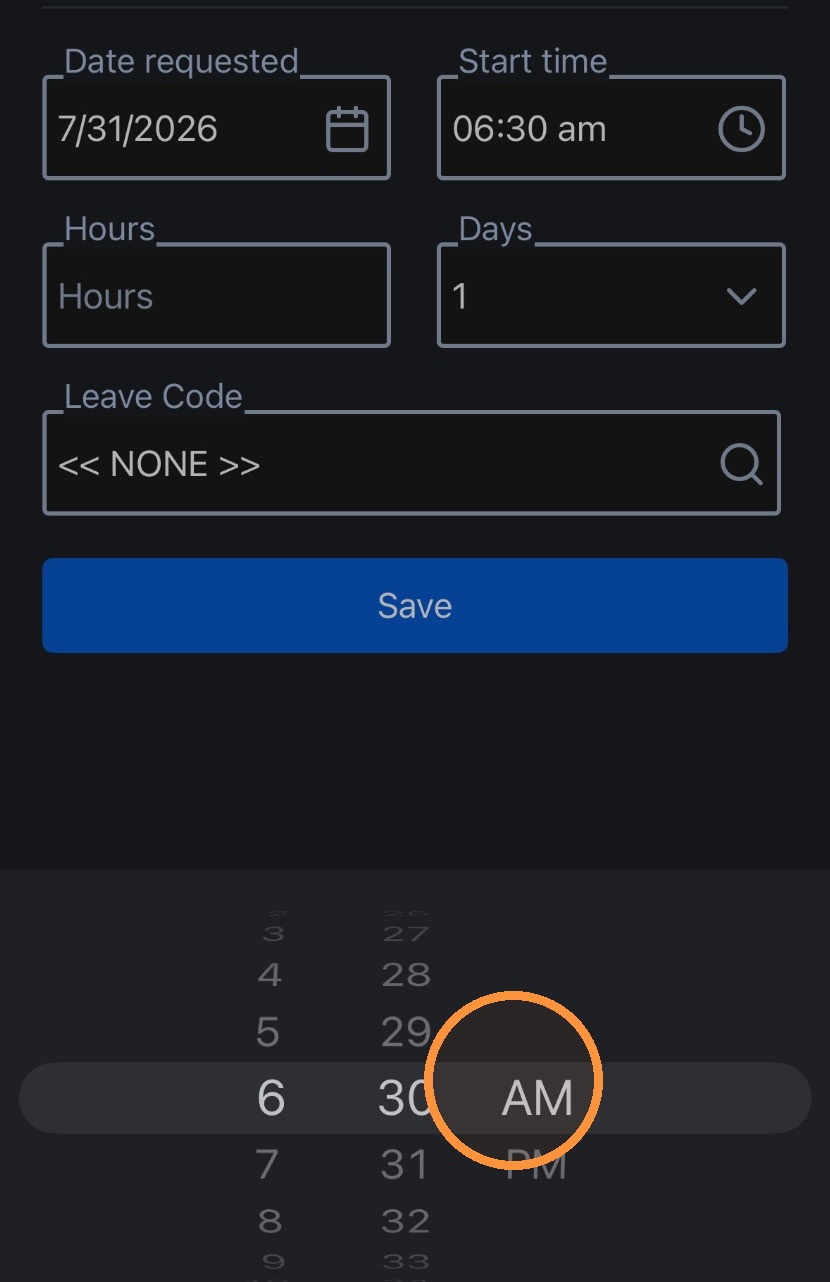
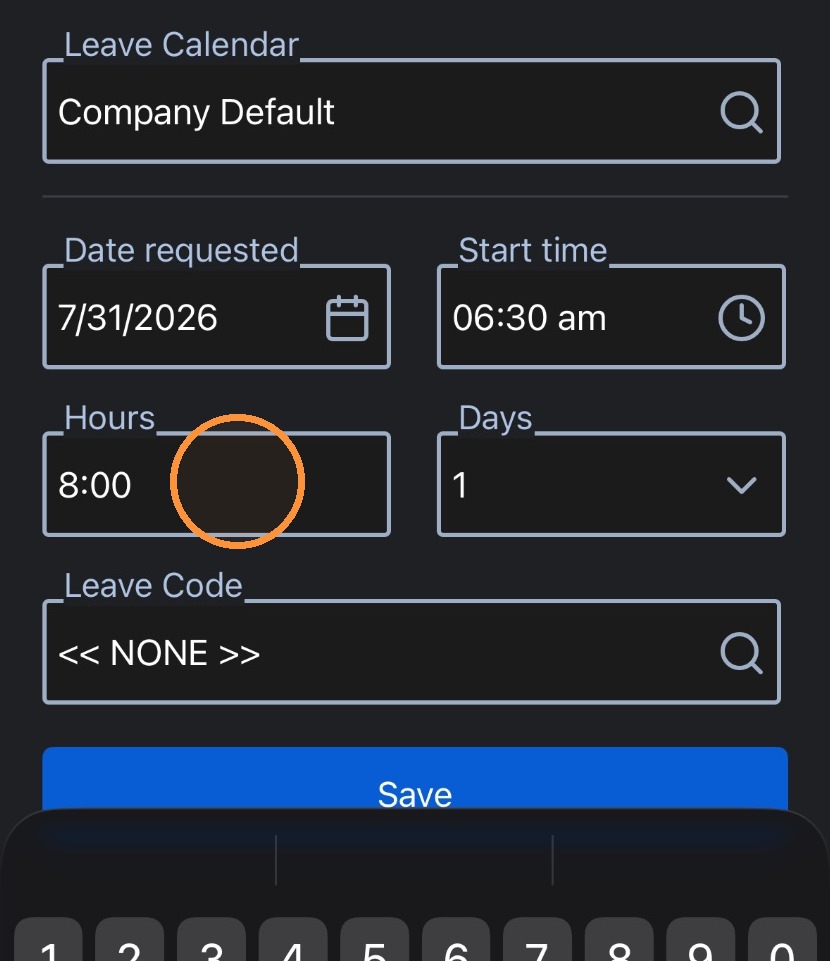
9. Tap the "Hours" field and enter the amount of time you will be taking off (per day) for your leave, in "hh:mm" format. For example, if you will be taking 4 hours and 30 minutes off, enter "04:30".
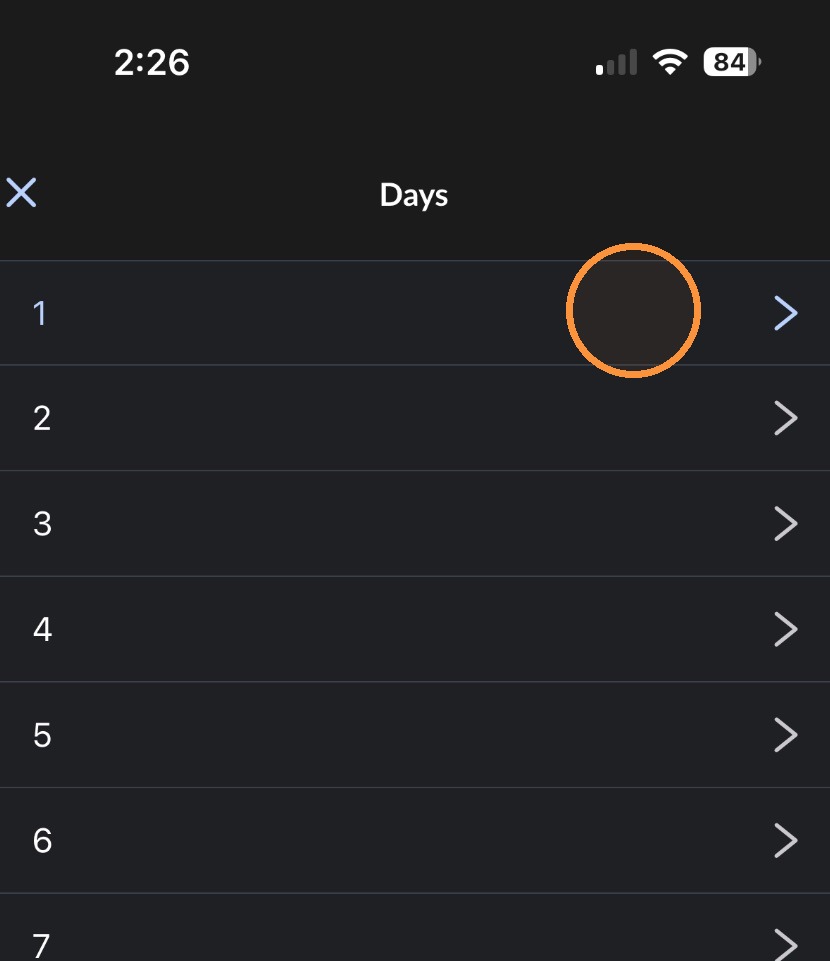
10. Tap the "Days" field and select the number of days of leave being requested.
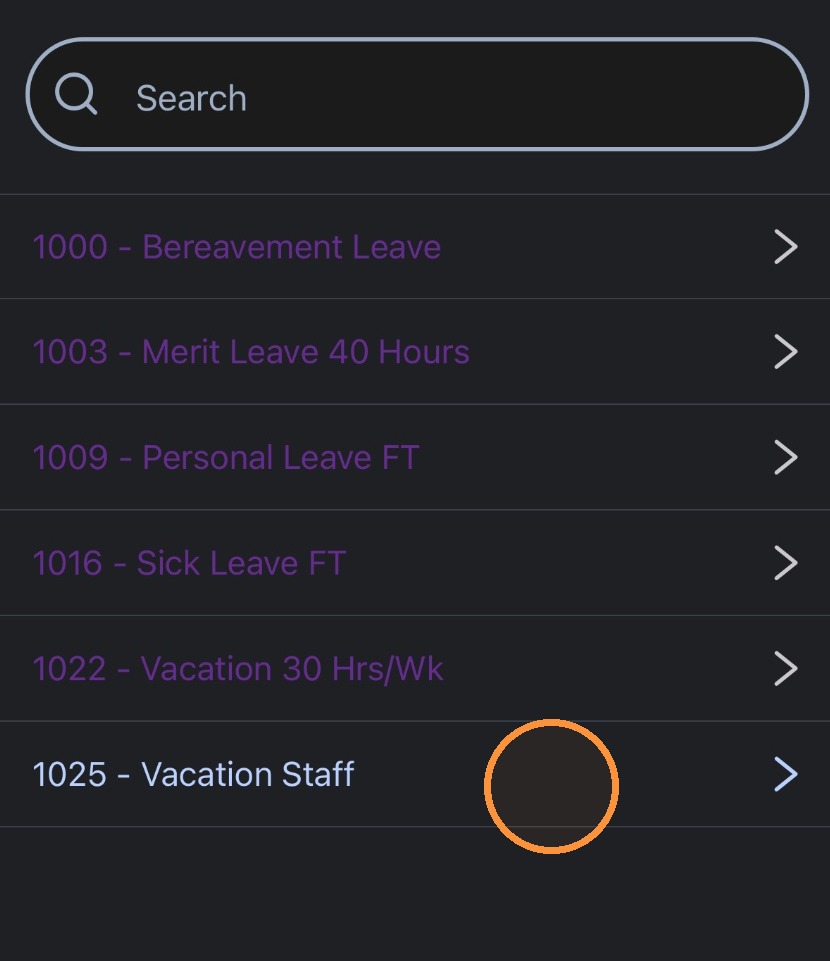
11. Tap the "Leave Code" field and select the type of leave to be taken from the menu that pops up.
12. Once all the fields are filled, tap the "Save" button.
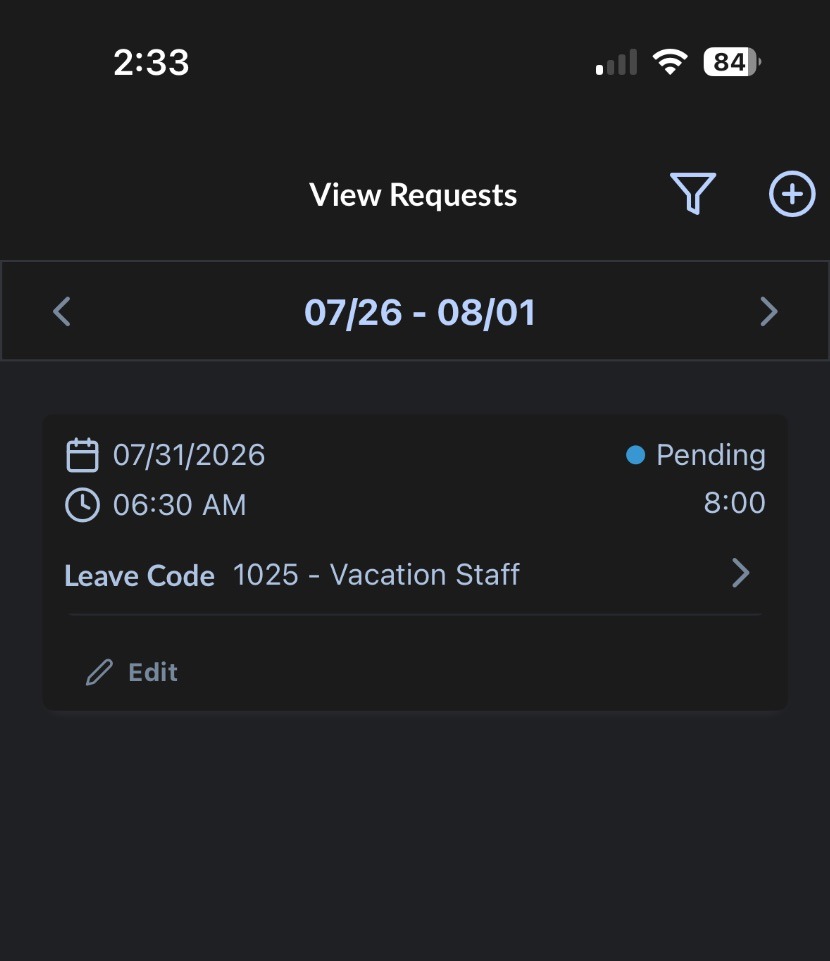
13. After you click save, you should see a pending leave request on the Leave Requests menu screen. Once you see this, it is up to your manager to approve the leave. You're done!