This guide walks you through the steps to input your leave details and submit your request for approval.
Employee Login
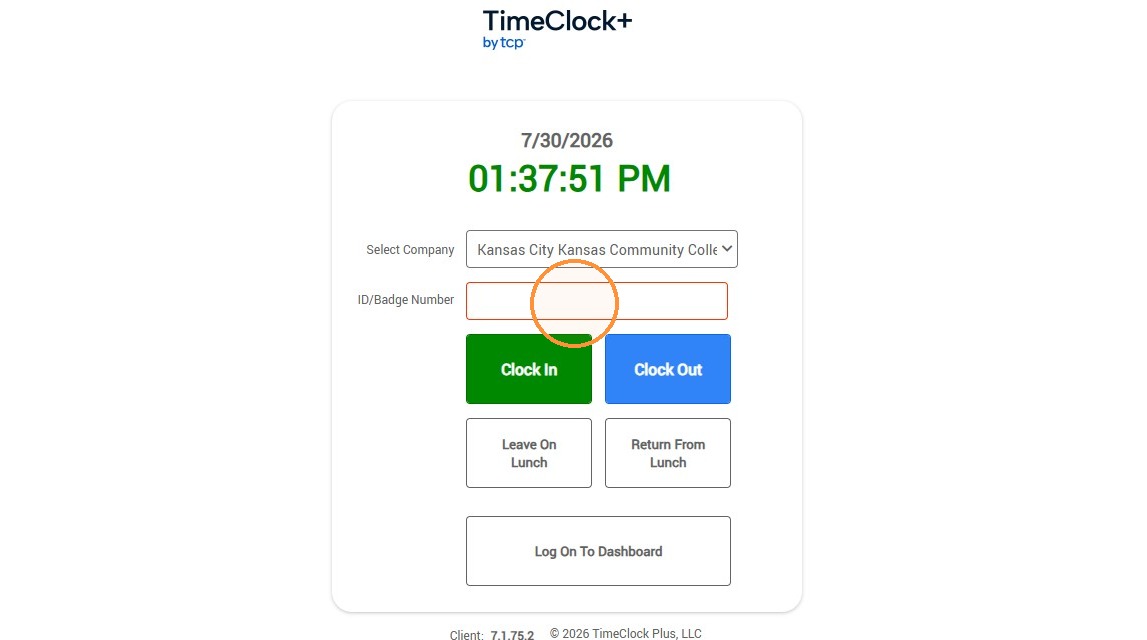
2. Enter your ID or Badge Number in the blank
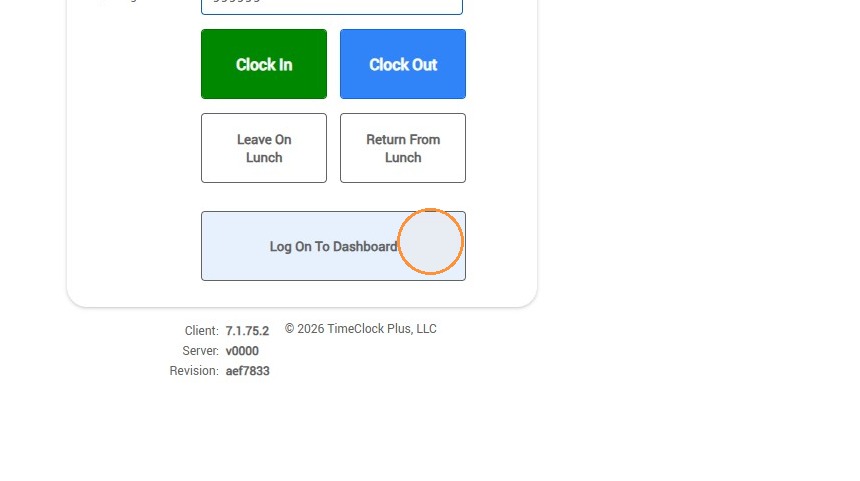
3. Click the "Log On To Dashboard" button to open up your employee dashboard.
Open Requests
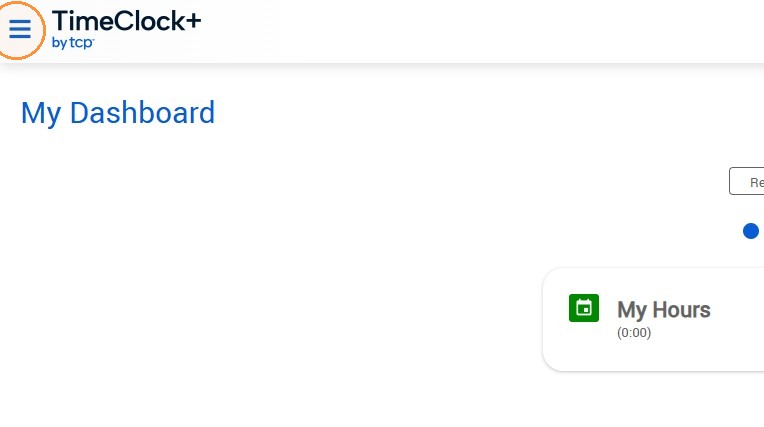
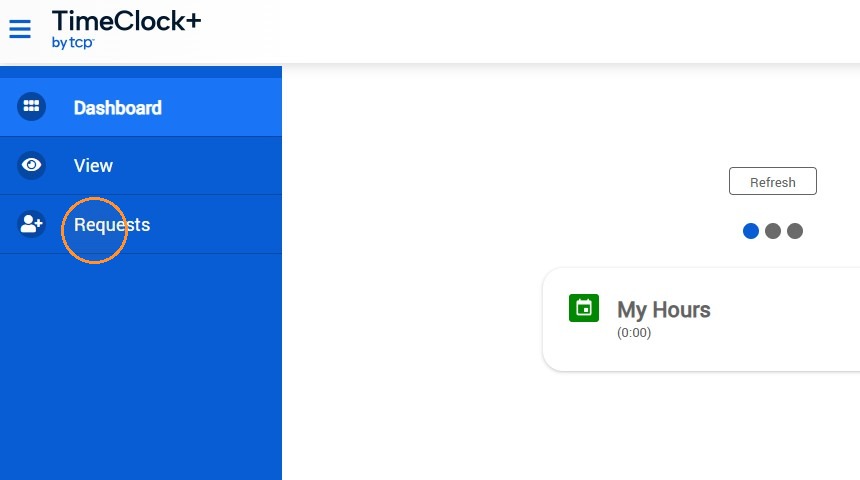
4. In the dashboard, click the three lines in the upper-left corner of the screen. This will bring up your dashboard menu.
5. In the dashboard menu, click "Requests".
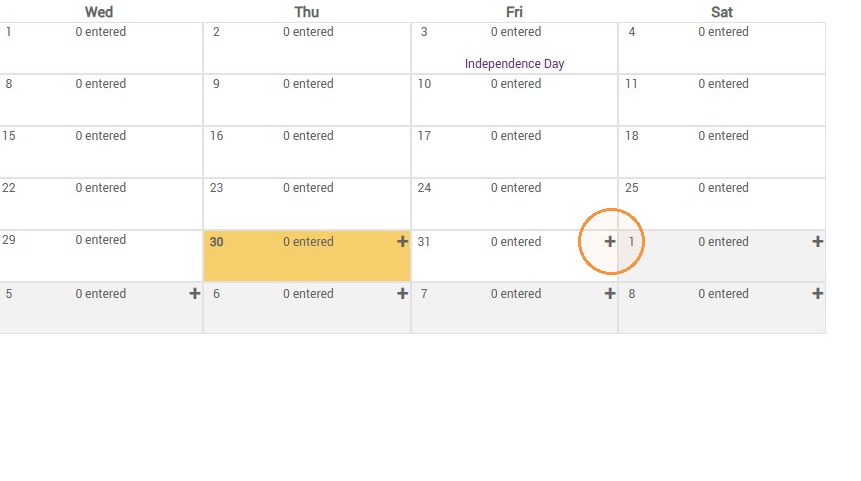
6. This will bring up a calendar. Browse to the beginning date of your request and click the plus ("+") sign.
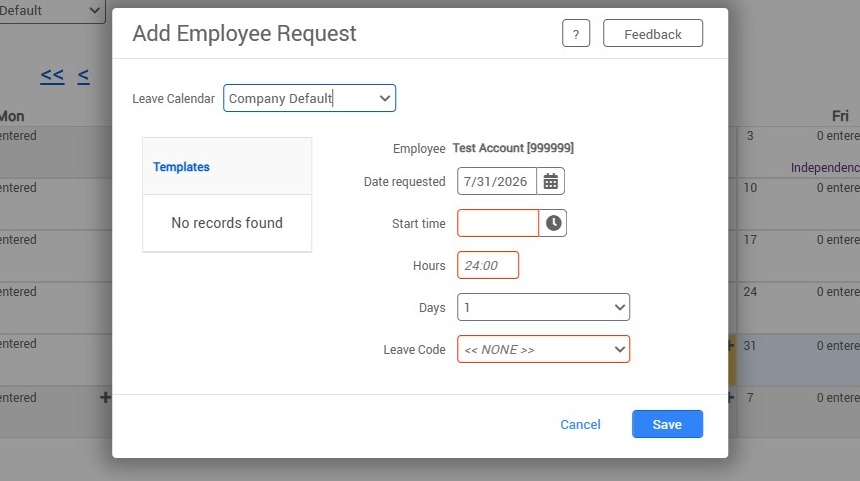
7. You should see the "Add Employee Request" menu. From here, you can fill in the details of your leave request.
Submit Leave Request
8. The "Date requested" field should contain the date that you pressed the plus ("+") sign on. If it doesn't contain the correct date, enter the date of the start of your time off request. In "Start time", enter the time of the beginning of your time off request (this will be the start time of a typical shift if you are requesting a full day).
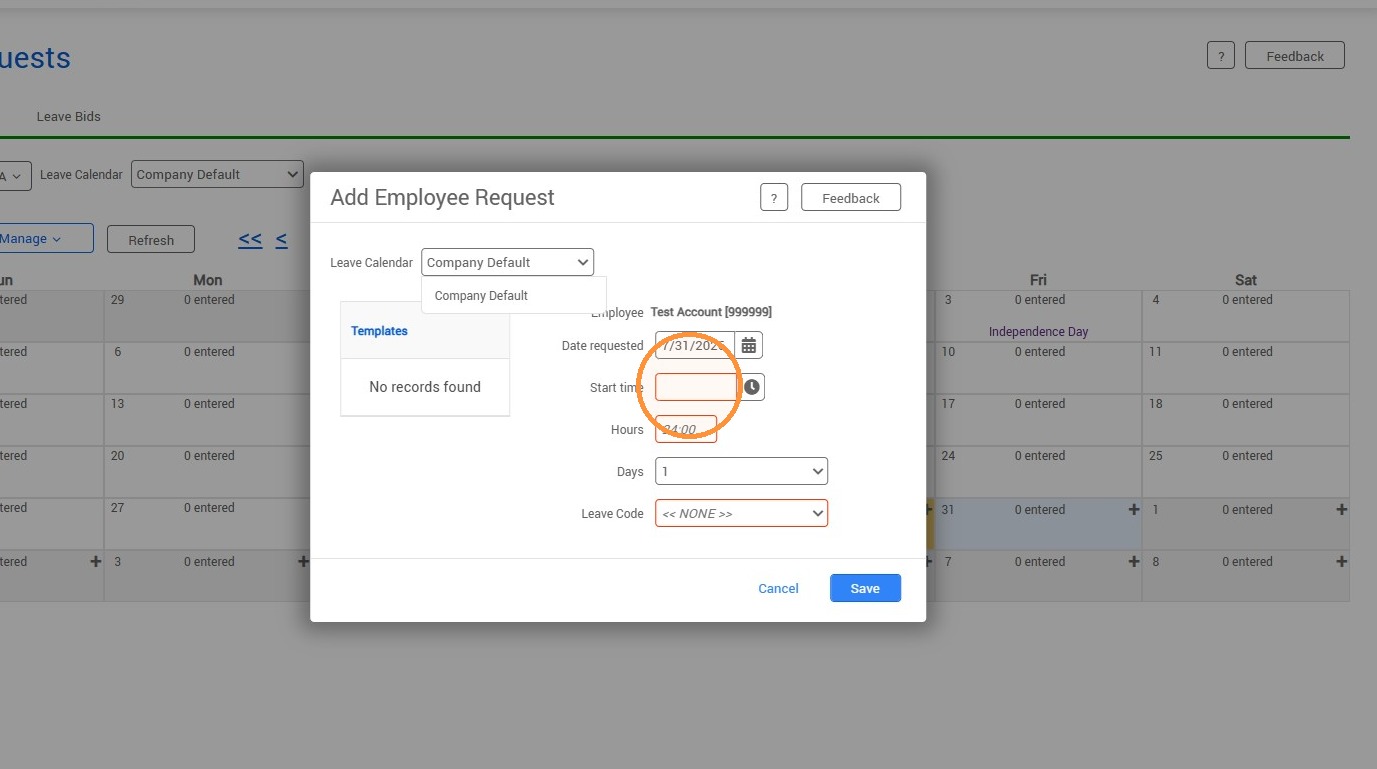
9. Enter the number of hours of leave you are requesting for each day of your request (this will typically be "8:00" if you are taking a full day or days).
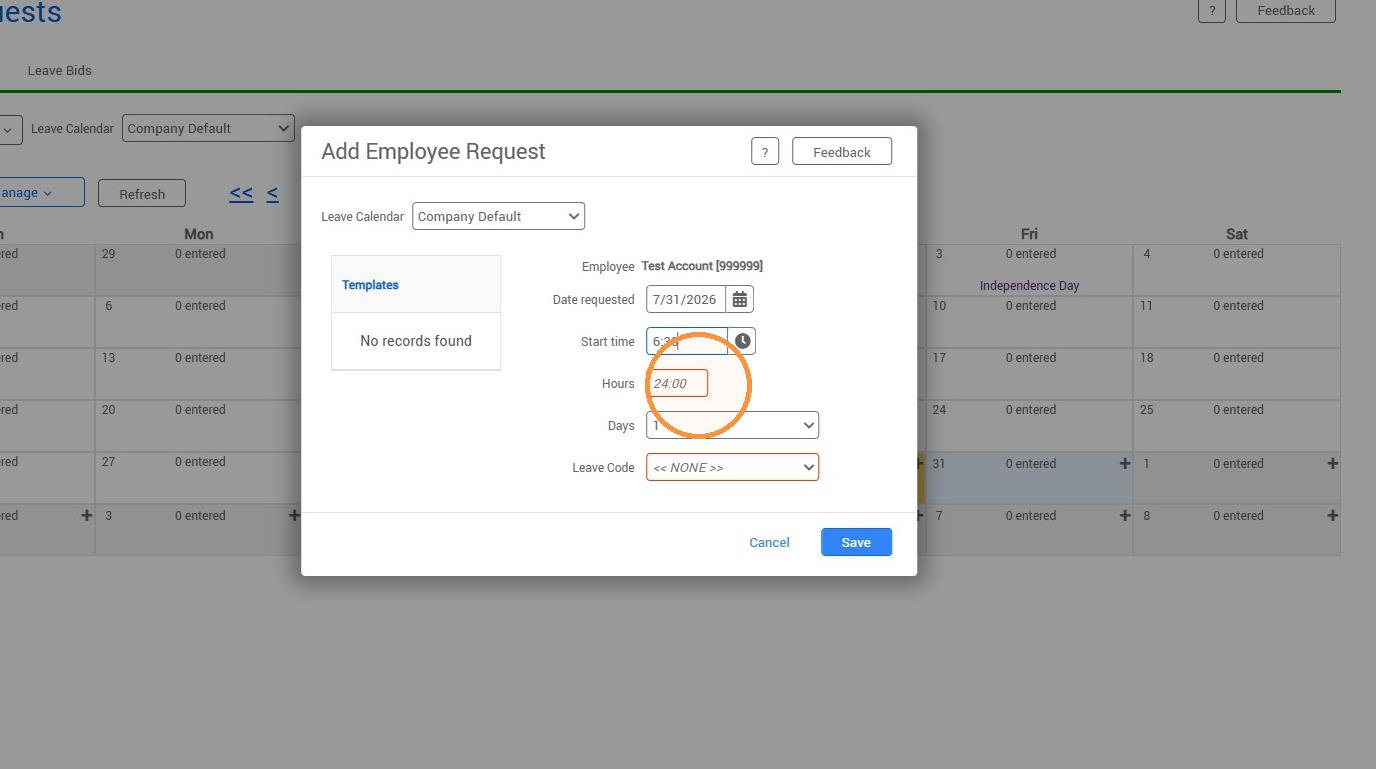
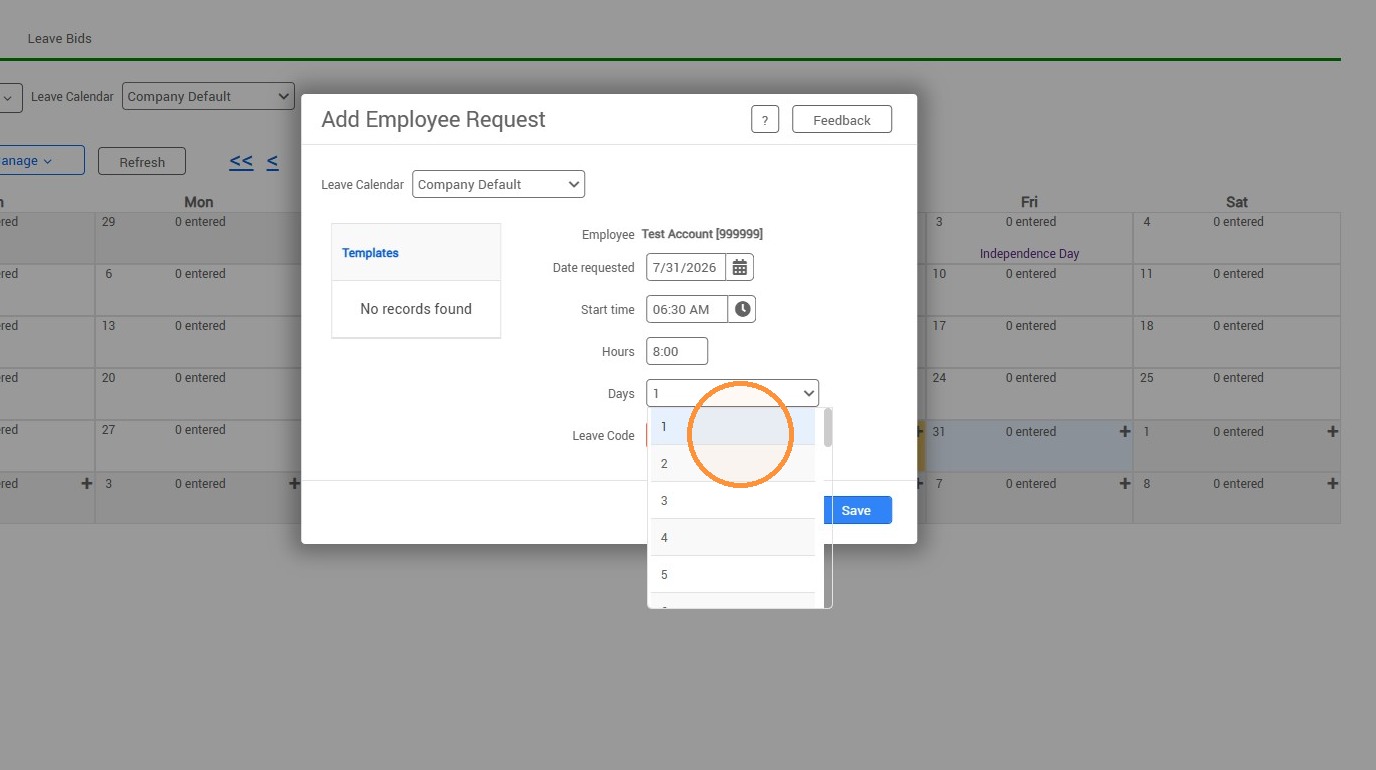
10. Select the number of days you are requesting leave for from the "Days" dropdown menu.
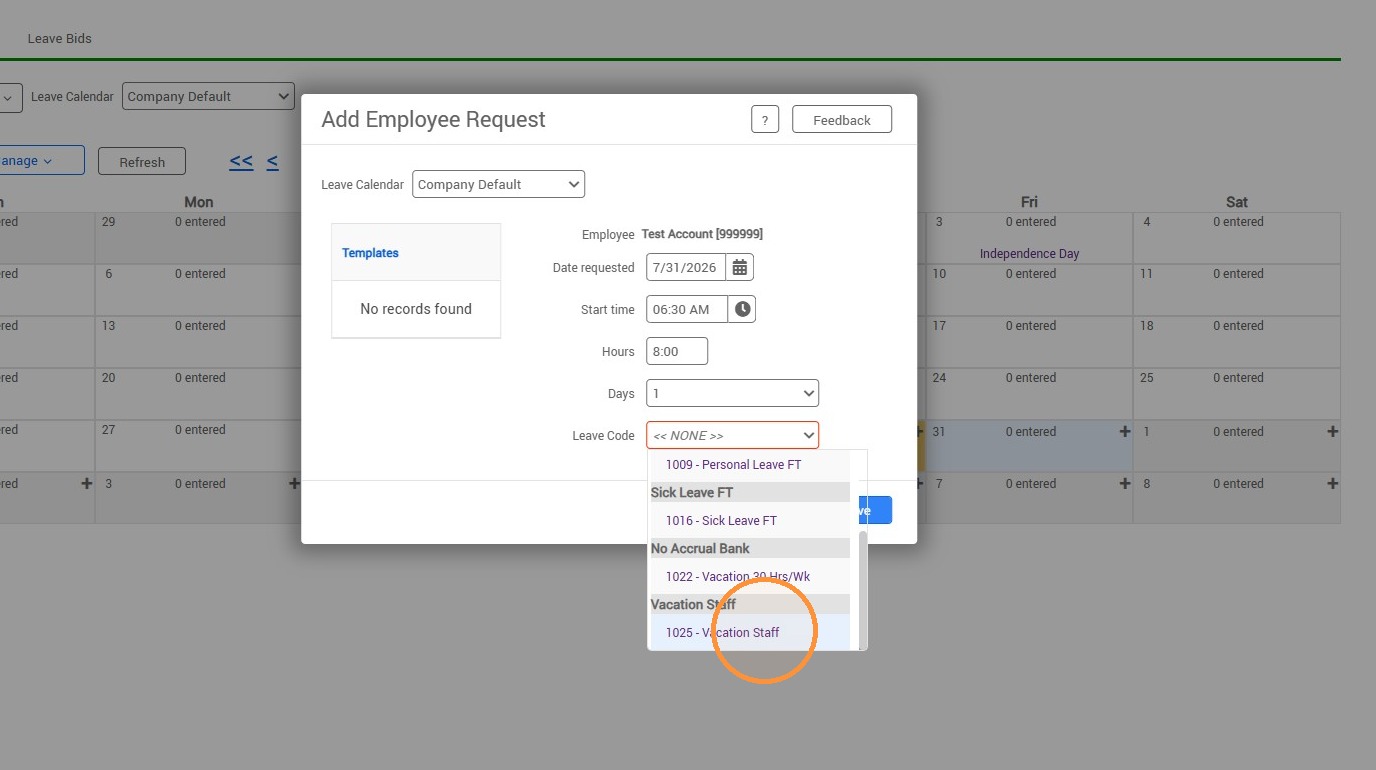
11. Select the type of leave you are taking (Sick, Vacation, etc) in the "Leave Code" dropdown.
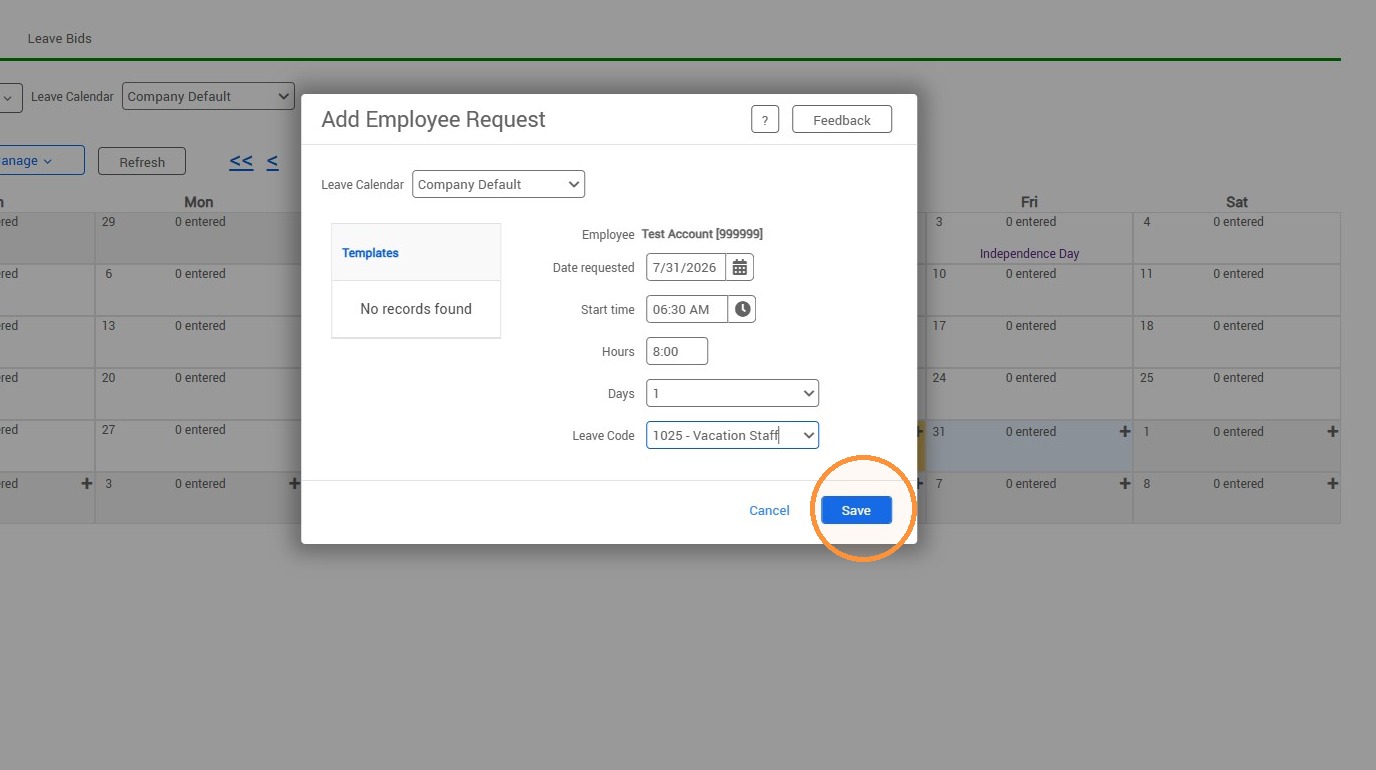
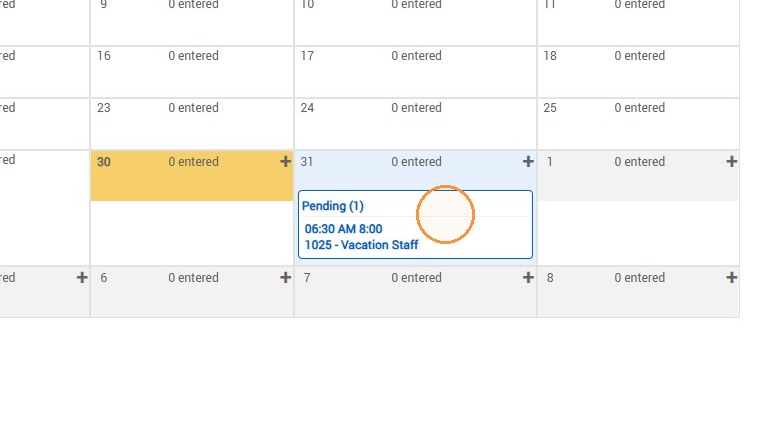
13. After you click save, you should see a pending leave request on the calendar where you first selected the date. Once you see this, it is up to your manager to approve the leave. You're done!