Sometimes an instructor wants to create a rubric to assess a student's performance in an offline or non-Ultra course context. For example, if a student is being assessed for a public speaking project, the instructor may want to convey instructions or the rubric preview to the student to prepare them for this offline assessment but won't expect to collect the submissions through the course.
In this release, we're introducing a new assessment setting to allow users to track offline submissions and use a rubric to grade. This feature helps bridge the gap for hybrid courses that meet in person and conduct course activities online. Instructors can keep track of all relevant coursework within Ultra and eliminate the need to transcribe grades from items or activities that took place physically.
Align goals with a test, assignment, or discussion
In a test, assignment, or discussion, select the Settings button to add, edit, and remove goals. In the panel that appears, select Align with goals. The Goals & Standards page appears. If the item already has goals associated with it, the link shows the number of goals.
To align goals with an individual test question, open the test. Open the menu next to the question and select Align with goal. A trophy button appears next to questions with aligned goals. Select the button to edit or remove goals from the question. Or, you can select Align with goal again to add, edit, or remove goals associated with the question.
Students can view information for the goals you align with tests, assignments, or discussions so they know your expectations.
Align goals with items on the Course Content page
You can align goals with some items on the Course Content page, including links, teaching tools with LTI connection, files, and documents.
To add, edit, or remove goals associated with these items, open the menu in the item's row and select Edit. In the panel that appears, select Align with goals. The Goals & Standards page appears. If the item already has goals associated with it, the link shows the number of goals.
Students can't view the goals you align with links, LTI tools, files, or documents.
Align goals with a rubric
To add, edit, or remove associated goals from a rubric, select Align with goals under a criteria row. The Goals & Standards page appears. Students can't view the goals you align with a rubric.
Goals & Standards page
On the Goals & Standards page, you can select new goals to align with course content or remove goals previously added.
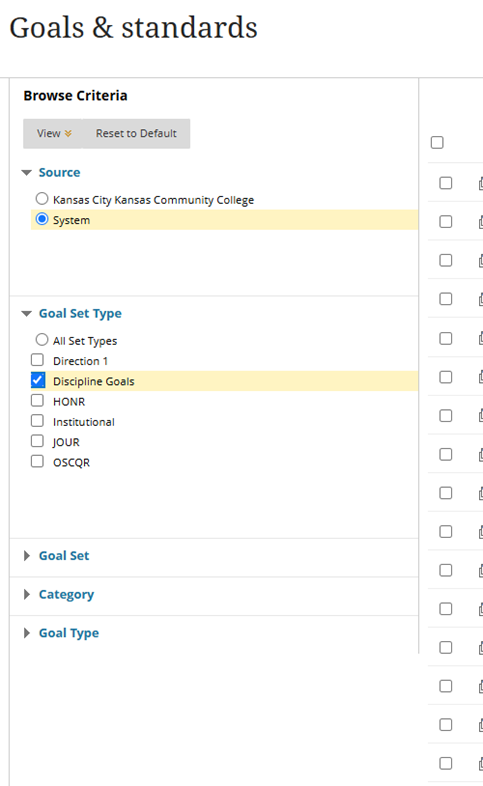
- Under Browse Criteria, expand the sections and select specific criteria:
- Source: Select System
- Goal Set Type: Discipline Goals
- Goal Set: Select your department
- Category: Select Course
- Goals that fit the criteria appear. Select the checkboxes for the goals that you want to add.
- The goals appear in the Selected Goals area at the bottom of the screen. You can expand the area to view your list of goals.
- Select the red X next to a goal to remove it. The goal is removed from the collection, but not deleted from the system.
- Select Submit. The selected goals are aligned with the item.