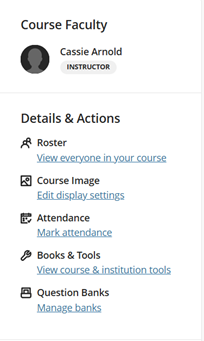
1. In your course in Blackboard, select Books & Tools.
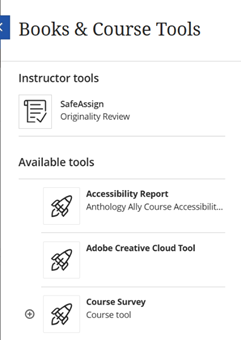
2. Select the Accessibility Report under the available tools.
3. In this menu, you can see the Course’s overall accessibility score.
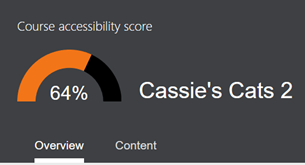
4. If you select one of the issues it will take you to a list of inaccessible content.

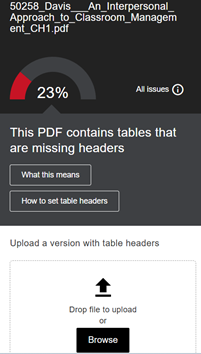
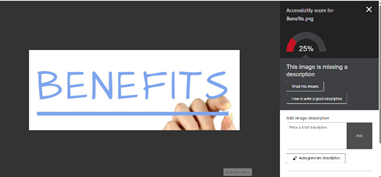
5. If content can be fixed in the system, like images without descriptions, then when you select the item, it will provide instructions on how to fix the issue and space for you to fix it.
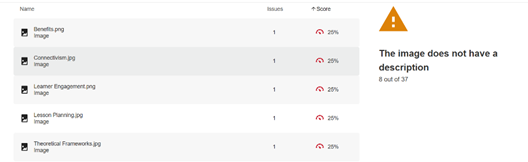
6. For images that are missing a description, you can either add your own description or have the AI auto-generate a description.
7. For content that cannot be fixed in the system, the report provides instructions on how to fix it and space for you to re-upload the document that you fixed.