In order to use Draft Coach you must use Office 365 online and you must ensure your file is saved as a Word Document file (.doc/.docx) not the default Open Document Text file type.
Here is a video version of this guide.
Video Link: https://kckcc.hosted.panopto.com/Panopto/Pages/Viewer.aspx?id=69d81a63-35d1-4247-9fa8-b3e1015b591f
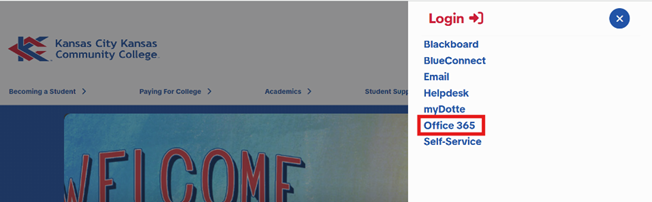
1- From the KCKCC.edu website select the red Login button in the top right hand corner, and from the menu select Office 365.
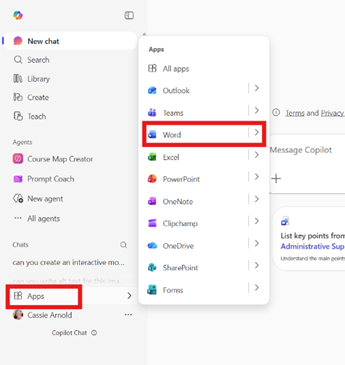
2- In the Office 365 window find the “Apps” menu then select “Word”.
3- Open the document you want to check.
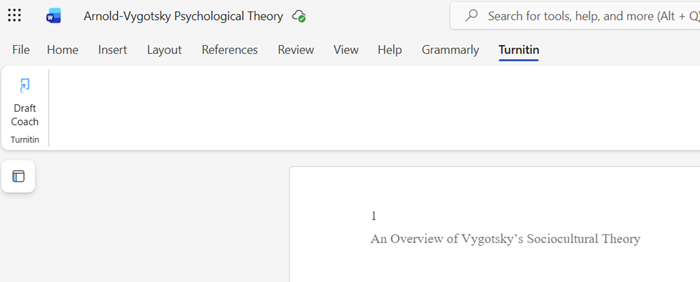
4- In word find the Turnitin tab at the top of the document, then select Draft Coach.
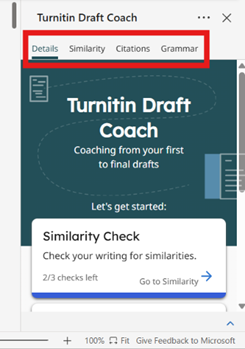
5- In the Draft Coach Window you can view the Similarity Report, Citations, and Grammar Check.
A- You can run three similarity reports per document.
B- You can run the citation and grammar check as many times as you like.