After you login to Blackboard Ultra, you will be brought to the "Courses" page by default. In order to see courses from other semesters, you will need to click on the "Current Courses" button. This button can be found towards to the top middle of the webpage.
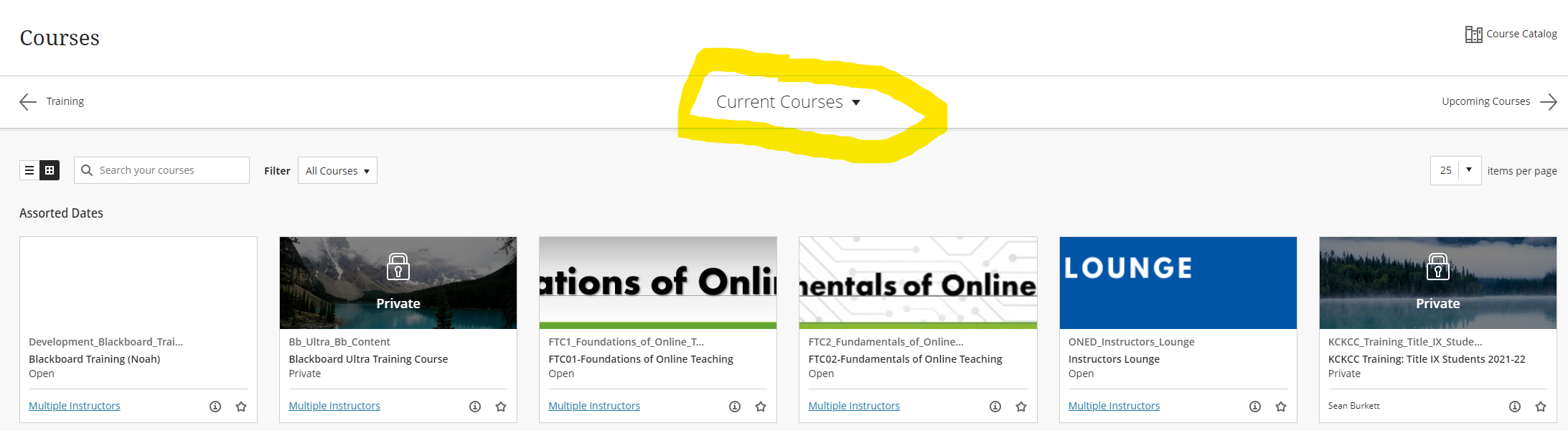
Once you click on "Current Courses" a drop down menu will appear. Here your courses from previous semesters will appear. Your training and development course groups will also appear here too.
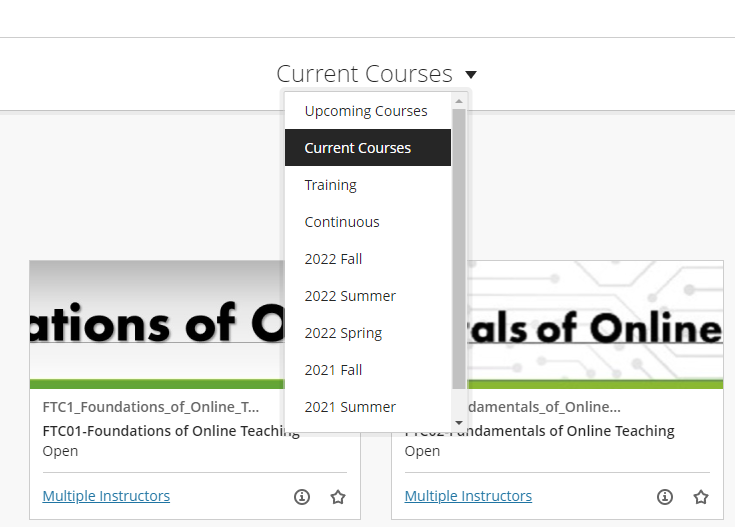
Click on the semester that you want to go to, and Blackboard will bring up the courses from that time.
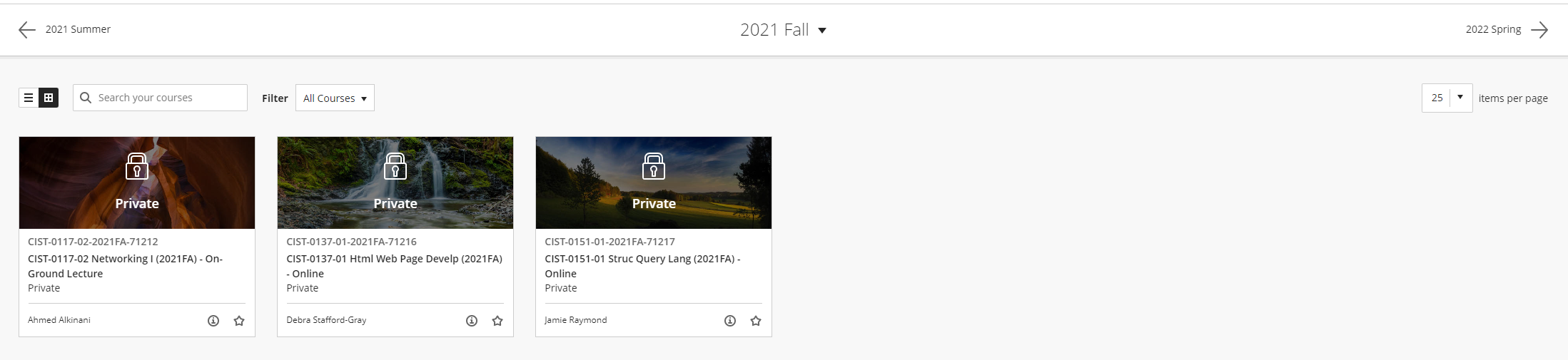
You can also navigate to different semesters by clicking on the arrows on each side of the browser window.

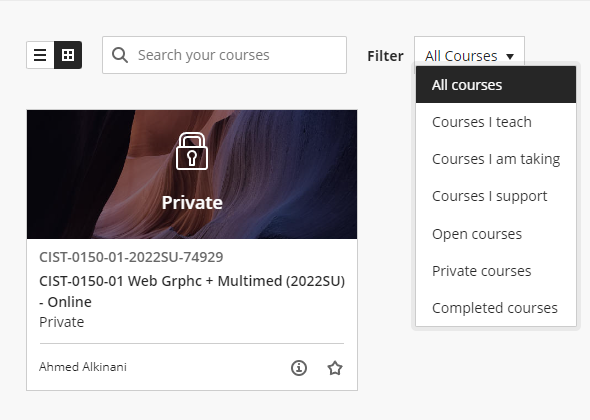
You can also filter the courses that you see.
If you have anymore questions about navigating Blackboard Ultra please contact Online Education Services for more support.