Description:
Submitting from the cloud is similar to submitting documents from your computer to an assignment. The difference between the two methods is where the document came from. Rather than submitting a document that is saved on your local device, submitting from the cloud allows you to submit documents that you have saved in your cloud storage. Blackboard will then take the document that you submitted via the cloud and make a copy of it to save it on its servers. What is nice about submitting content from the cloud is that you are not limited by where you can submit files. As long as your device has connected to the internet, you can submit the document.
Steps:
1. Go to the assignment within Blackboard and click on it.

2. The assignment will open. Click on the “View instructions” button.

3. From with the submission textbox editor, click on the circle with a plus sign in it. A drop-down menu will appear once the button has been clicked.
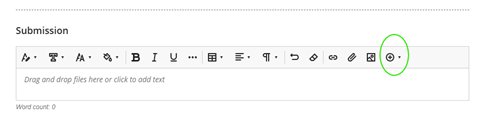
4. Click on the Cloud storage” option.

5. Click on the cloud storage that you would like to pull from. In this example we will use OneDrive.

6. You will now be asked to connect to your account. Click on the “Connect to OneDrive” Button.

7. Your computer will load the information, and your files from OneDrive will appear in front of you.
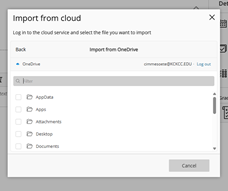
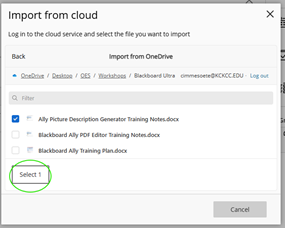
8. Navigate to the file that you would like to upload within the folder structure and select the file.

9. Click on the “Select” button.
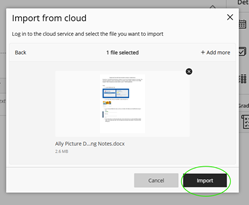
10. The cloud importer will ask you if this is the file that you want to import. To agree, click on the “Import” button.
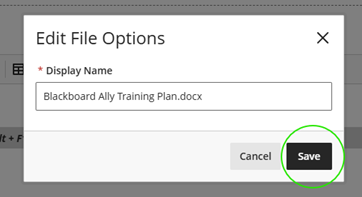
11. Blackboard will import the file. It will then ask you what you would like to name the file. If you are happy with the file name, click on the “Save” button. If you would like to change the name of the file, click within the text and type in a new name. When you are ready to save, click on the “Save” button.
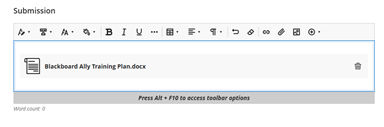
12. The file will be inserted into the submission box.
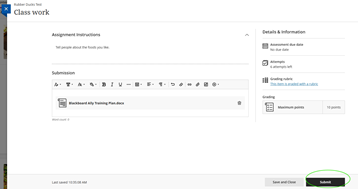
13. Click the “Submit” button to turn in the assignment.
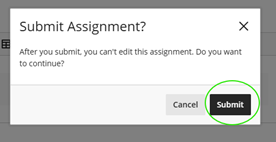
14. A pop-up window will appear, asking you if you are sure if you would like to submit the assignment. Click on the “Submit” button to confirm.
15. A new pop-up window will appear asking you if you would like to download the submission or not. You can close out of this window or download the file.
a.
16. You are now done. The rubric has been submitted.
